
Importing Data
This guide covers how to prepare and import data into Ex-Online using import packages. For the technical format specification, see Import Package Format.
Ex-Online uses import packages (ZIP files) to bulk import data. An import package contains an Excel spreadsheet with equipment data and, optionally, document files to be linked to equipment.
Getting the Import Template
Section titled “Getting the Import Template”The template is available from the Help menu.
-
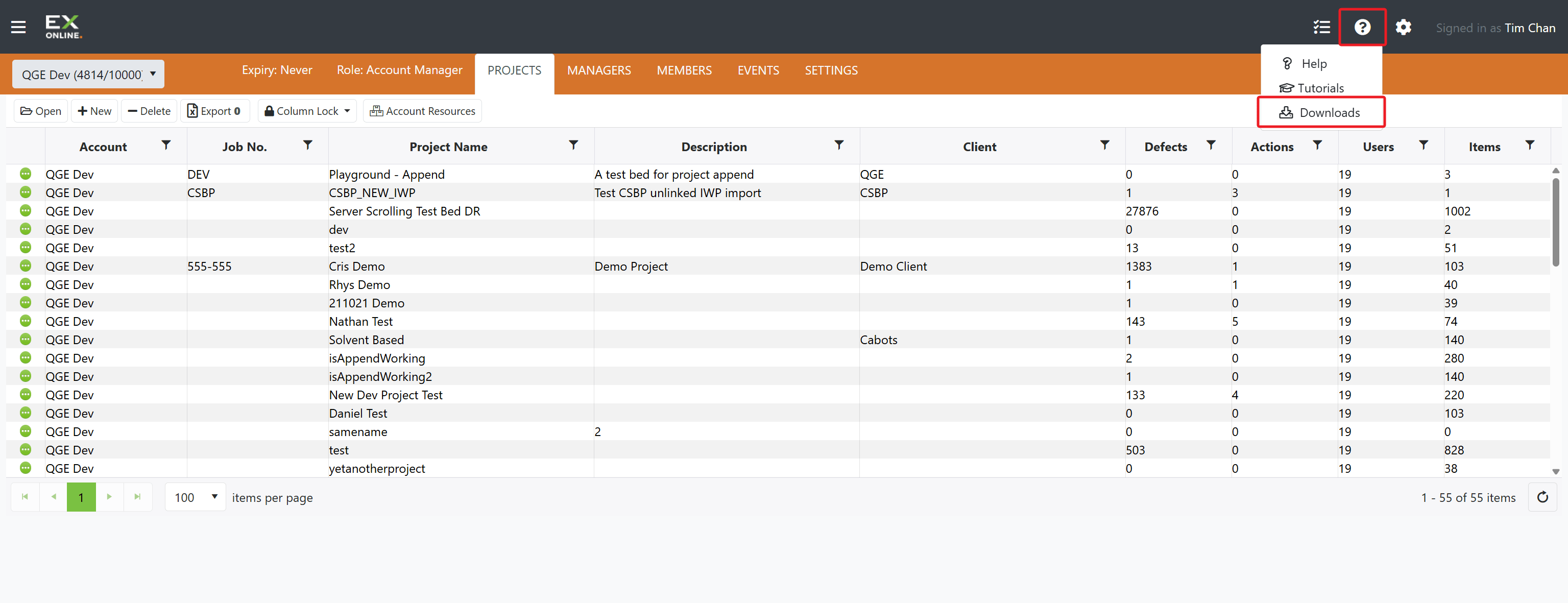
Click the Help button (question mark icon) in the top header bar.
-
Click Downloads.
-
On the Downloads page, download the Project Import Template.
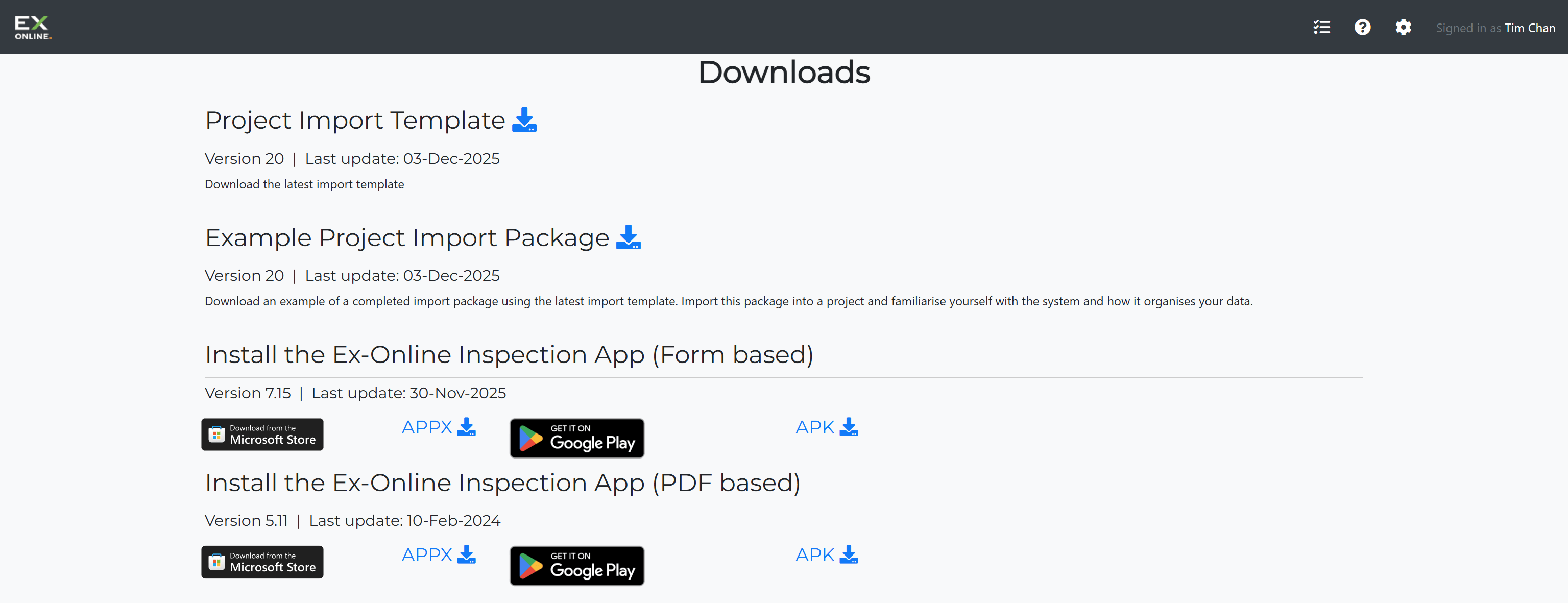
You can also download an Example Project Import Package from the same page — a complete working example with sample equipment and documents.
Preparing Your Data
Section titled “Preparing Your Data”-
Extract the template and open the Excel spreadsheet inside.
-
Fill in the spreadsheet using the tabs you need:
- Equipment tab: Add a row for each tagged equipment item. TAG_NO is the only required column; the other columns are optional.
- Associated Equipment tab: Enter an item number (for linking to equipment) and Cert # for each associated equipment record. All other fields are optional. If the certificate number already exists in the project, the import links that record to the relevant equipment items. Otherwise, it creates and links a new record.
For details about the other tabs and fields, see the Import Instructions tab in the import template.
-
Prepare documents (optional) — put document files in the same folder as the spreadsheet. Use supported formats: PDF, JPG, PNG, GIF. Do not nest them in subfolders.
-
Create the ZIP archive — select the spreadsheet and the document files, create a ZIP, and name it descriptively (e.g.,
Project-Import-2026-03.zip).
Tips for preparing your data:
- Test with a small batch first — import a few items to confirm formatting before importing thousands.
- Use
YYYY-MM-DDfor all dates — other formats are not accepted. - IECEx certificates don’t need a file — enter the full certificate number without spaces (e.g.
IECExPTB06.0025X) and the system fetches it automatically. - File names are case-sensitive —
Certificate.PDFandcertificate.pdfare different files. Always include the extension. - You can include multiple spreadsheets in one ZIP (e.g. one per site). All will be processed and can reference the same documents.
Importing the Package
Section titled “Importing the Package”-
Open your project and click the Project Options button (circle with three dots) next to the project name in the orange header bar.
-
Click the IMPORT / EXPORT tab.
-
Click Choose Files and select your import package ZIP file.
-
Click Import.
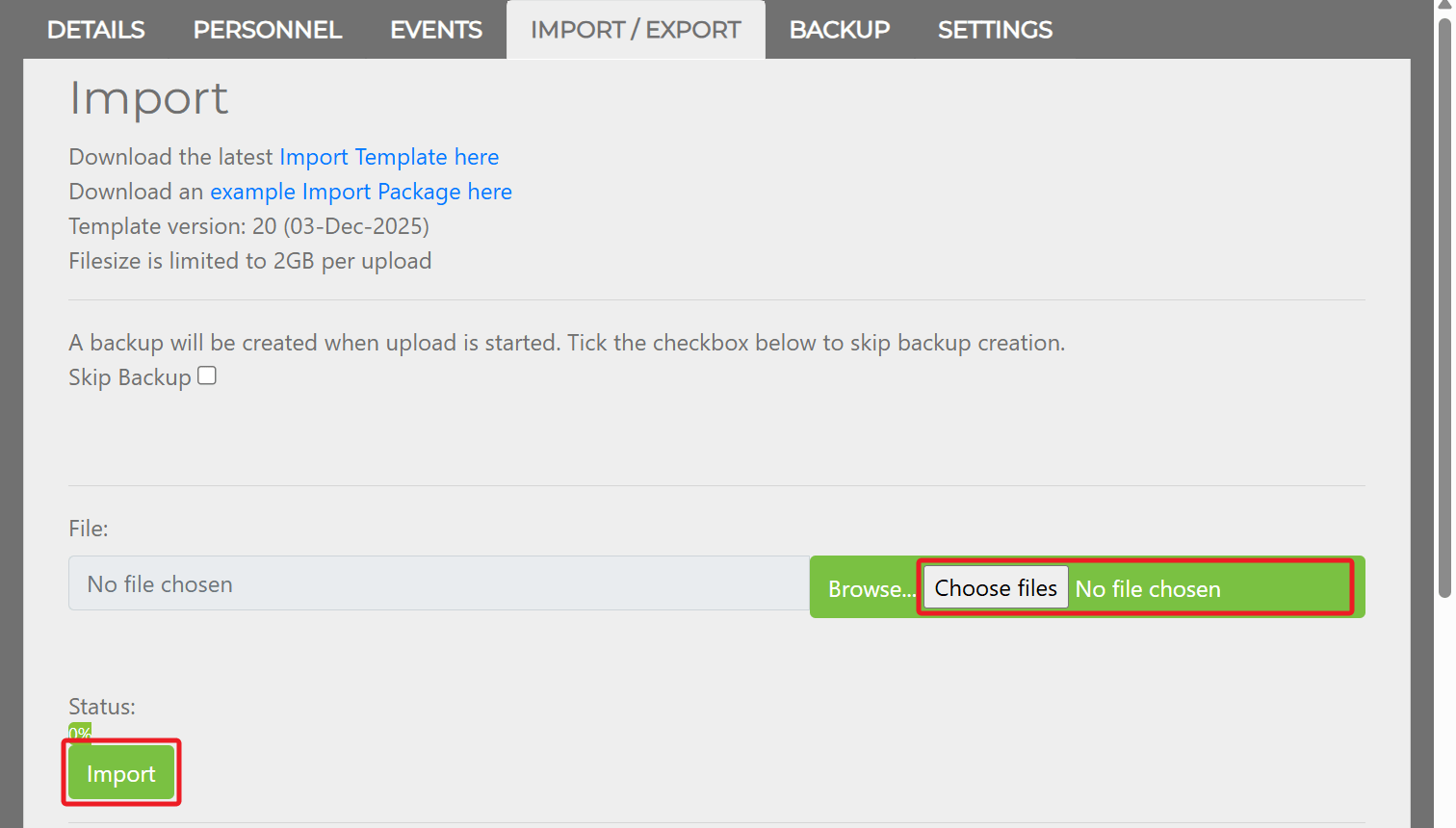
A backup is automatically created before processing begins.
Reviewing the Summary
Section titled “Reviewing the Summary”After import completes, a summary shows how many items were imported, ignored, or failed.
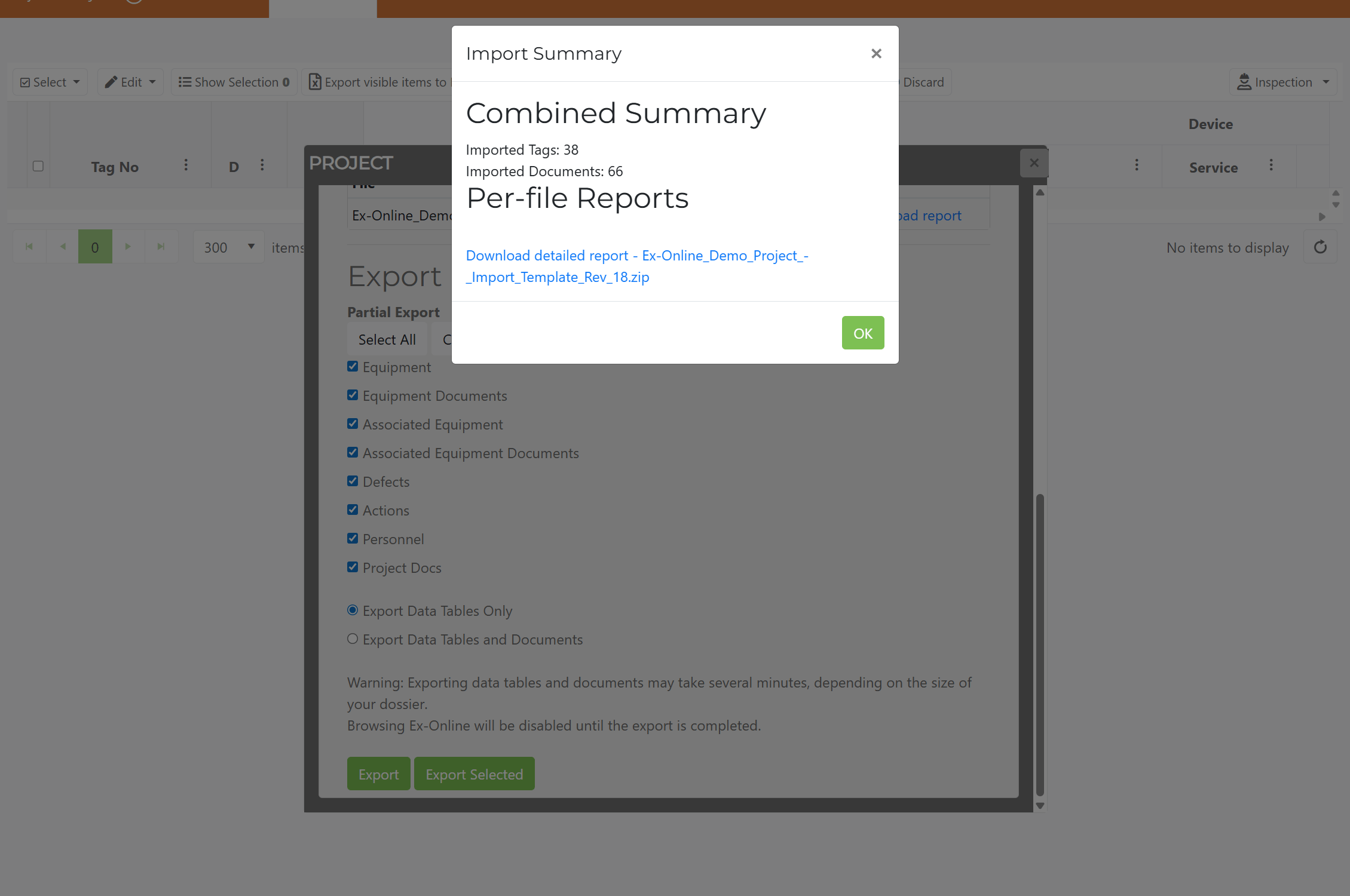
| Category | Description |
|---|---|
| Imported | Items added |
| Ignored | Items skipped during this import |
| Failed | Items that couldn’t be imported (with reasons) |
Review the summary carefully, especially any failed items. Click OK to close the summary and the Project Window. Your project is now populated with equipment data.
Common Import Scenarios
Section titled “Common Import Scenarios”- Initial setup — Create a project, then import a complete package with all equipment and documents
- Adding new equipment — Prepare a package with only new items; existing items are untouched
- Bulk document upload — Put the document files in the ZIP next to the spreadsheet. Do not add rows on the Equipment tab. Fill in the Equipment-Docs tab instead, and enter the existing Tag No. in the Tag No column for the item each document should link to.
Example Packages
Section titled “Example Packages”Equipment only
Section titled “Equipment only”The simplest import — a spreadsheet with no documents:
MinimalImport.zip└── Equipment.xlsxEquipment with documents
Section titled “Equipment with documents”A typical import with certificates and photos linked to equipment:
FullImport.zip├── Equipment.xlsx├── IECEx-12345.pdf├── ANZEx-67890.pdf├── JB-001.jpg└── JB-002.jpgTroubleshooting
Section titled “Troubleshooting”| Issue | Solution |
|---|---|
| Import fails | Check the ZIP isn’t corrupted, verify the structure matches the template, try a smaller test import first |
| Some items failed | Review the summary for specifics — common causes are missing required fields (TAG_NO on the Equipment tab, or item number and Cert # on the Associated Equipment tab), invalid date formats, or unsupported document types |
| Documents not linked | Verify filenames match spreadsheet references and documents are in the ZIP next to the spreadsheet |
| Data looks wrong | Restore from your pre-import backup, fix the package, and re-import |
Related Topics
Section titled “Related Topics”- Import Package Format — Technical format specification, column reference, and examples
- Import and Export Lifecycle — What happens behind the scenes during an import
- Backing Up Projects — Creating safety backups before imports