
Members
The Members tab on the Accounts Page displays all users who currently have access to one or more projects in the account, regardless of their role. This includes Owners, Managers, and Members alike.
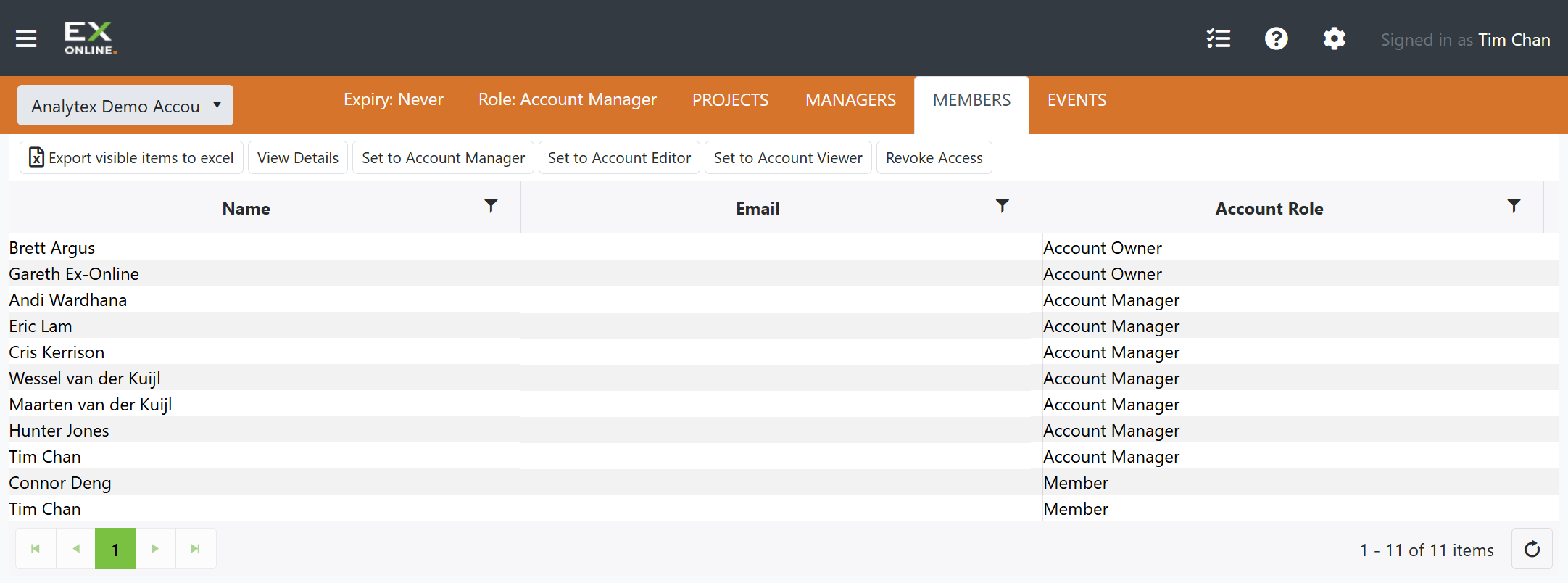
Members Grid
Section titled “Members Grid”The grid lists every user with access to the account.
| Column | Description |
|---|---|
| Name | The user’s display name |
| The email address associated with the user’s Ex-Online account | |
| Account Role | The user’s account-level role: Account Owner, Account Manager, or Member |
Each column header includes a filter control for narrowing the list.
Toolbar
Section titled “Toolbar”The Members toolbar provides actions for viewing details and managing account roles.
| Button | Description |
|---|---|
| Export visible items to excel | Downloads the current grid view as an Excel (.xlsx) file. Filters are respected — only the rows currently visible in the grid are exported. |
| View Details | Opens the Member Projects window for the selected user |
| Set to Account Manager | Promotes the selected user to Account Manager |
| Set to Account Editor | Sets the selected user to Editor across their assigned projects |
| Set to Account Viewer | Sets the selected user to Viewer (read-only) across their assigned projects |
| Revoke Access | Removes the selected user’s access to the account entirely |
Viewing Member Details
Section titled “Viewing Member Details”The View Details button opens the Member Projects window for the selected user. This window shows:
- Which projects the user has access to
- Their role within each project (e.g., Editor, Read-Only)
- Their active or inactive status in each project
The Member Projects window is read-only. To change a user’s account-level role, use the toolbar buttons above the grid (Set to Account Manager, Set to Account Editor, Set to Account Viewer). To change a user’s role within a specific project, open the Project Info Panel for that project and use the USERS tab.
When Users Appear and Disappear
Section titled “When Users Appear and Disappear”A user appears in the Members tab as soon as they are added to any project in the account, or when they are added as a Manager or Owner.
A user is removed from the Members tab when:
- They are removed from all projects in the account, and
- They do not hold a Manager or Owner role
Account Role vs. Project Role
Section titled “Account Role vs. Project Role”The Account Role column reflects the user’s account-wide permissions. Within individual projects, users may have a different project-level role (Editor or Read-Only). The account role takes precedence — an Account Manager always has full access to every project, regardless of any project-level role assignment.
For the full permission model, see User Permissions.
Related Topics
Section titled “Related Topics”- Owner & Manager View — Full Accounts Page as seen by Owners and Managers
- User Permissions — Complete permission reference
- Inviting Users — Step-by-step guide for adding users