
Reviewing and Approving Inspections
Review a signed check sheet, amend answers, add comments, and sign off as a reviewer or approver.
Before you start
Section titled “Before you start”The Inspection App supports three sign-off roles per check sheet: Inspector, Reviewer, and Approver. Use this workflow when your project requires a reviewer or approver sign-off before uploading results.
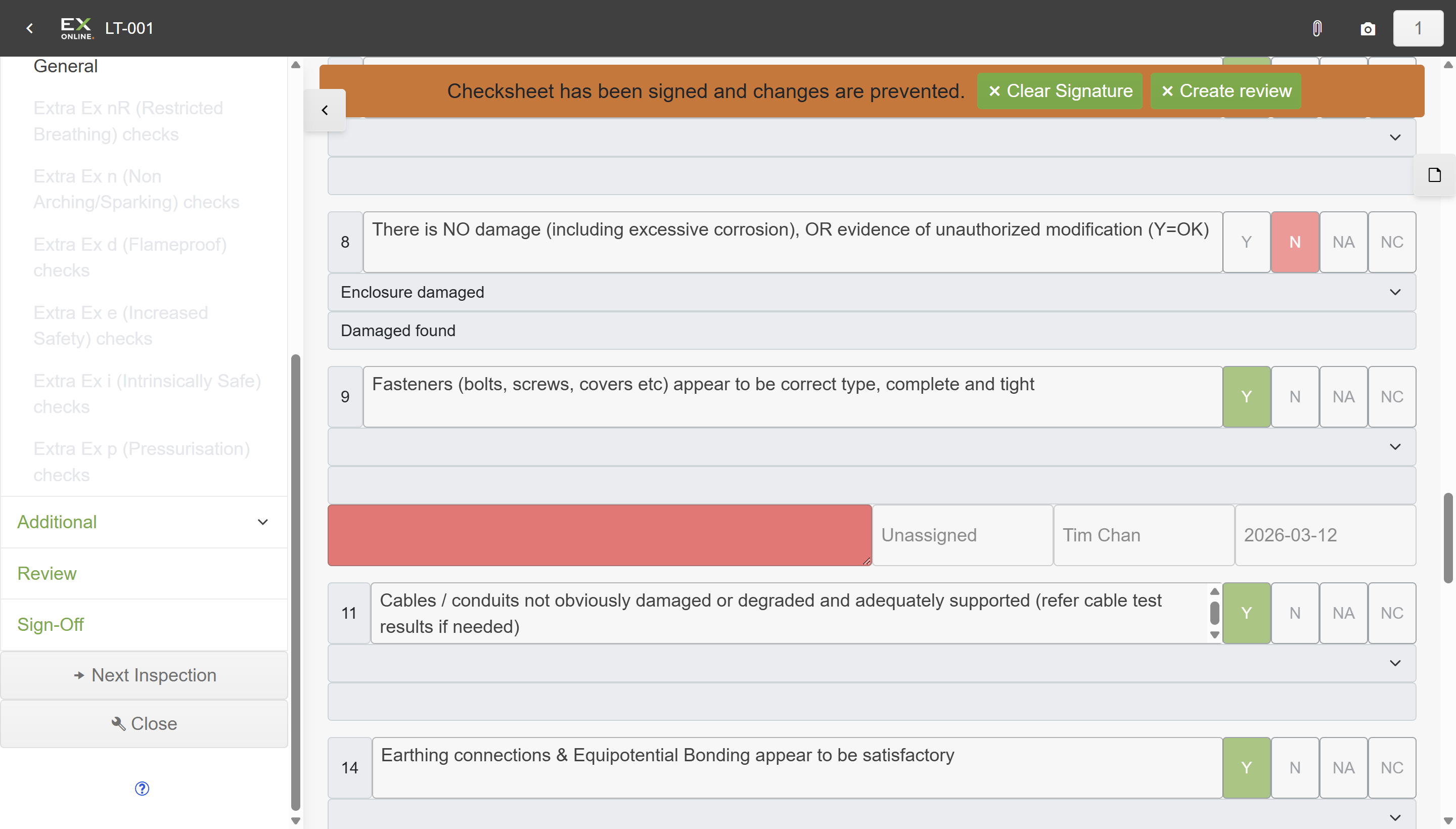
After the inspector signs off, the check sheet locks and an orange banner appears with a Create review button.
Entering review mode
Section titled “Entering review mode”-
Open the signed check sheet.
-
Click Create review in the orange bar.
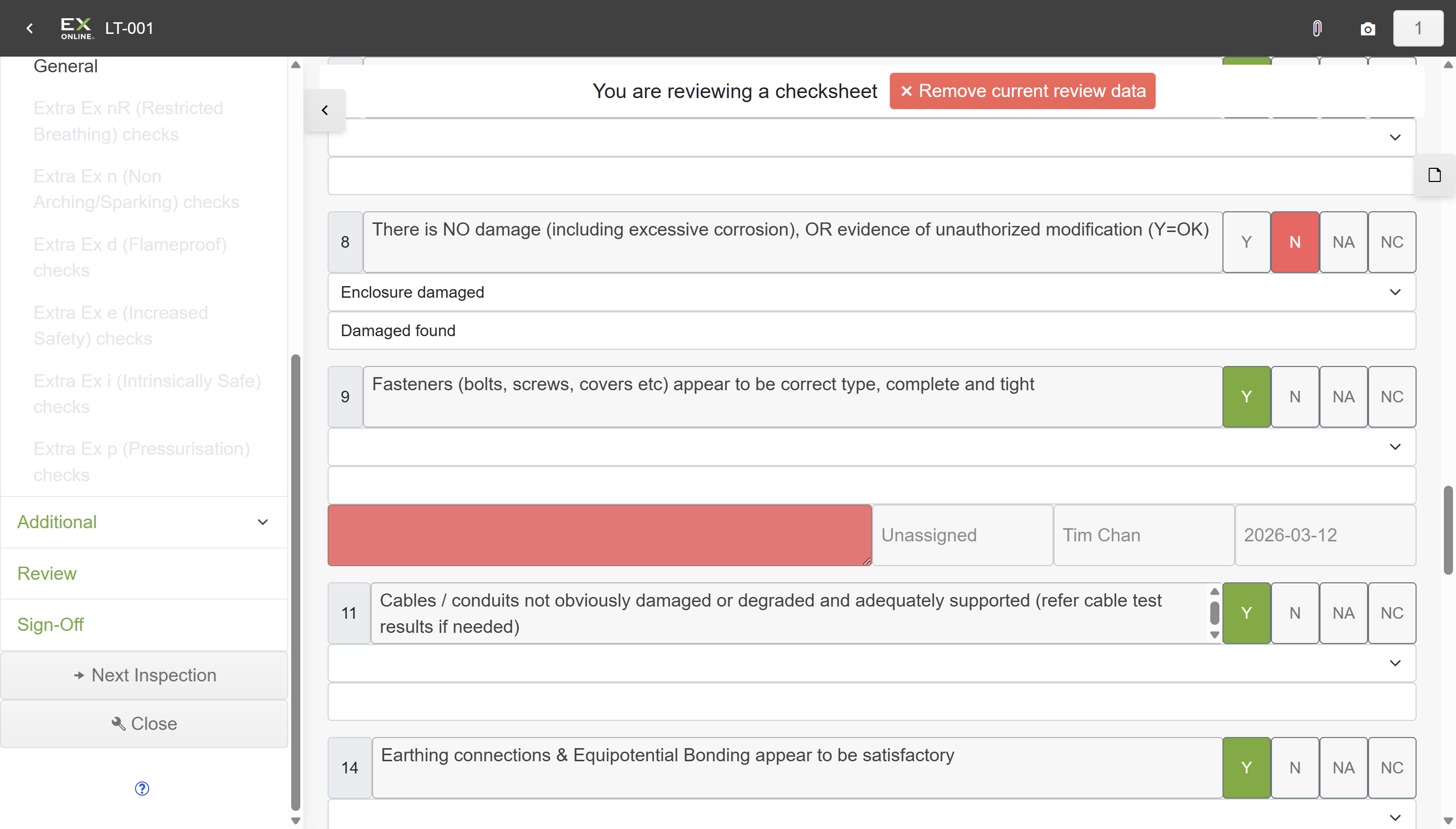
The banner changes to “You are reviewing a checksheet” and fields become editable again.
-
Review the inspection — you can:
- Amend inspection answers — change Y/N/NA/NC responses on any question
- Edit equipment data — update fields in the white editable rows
-
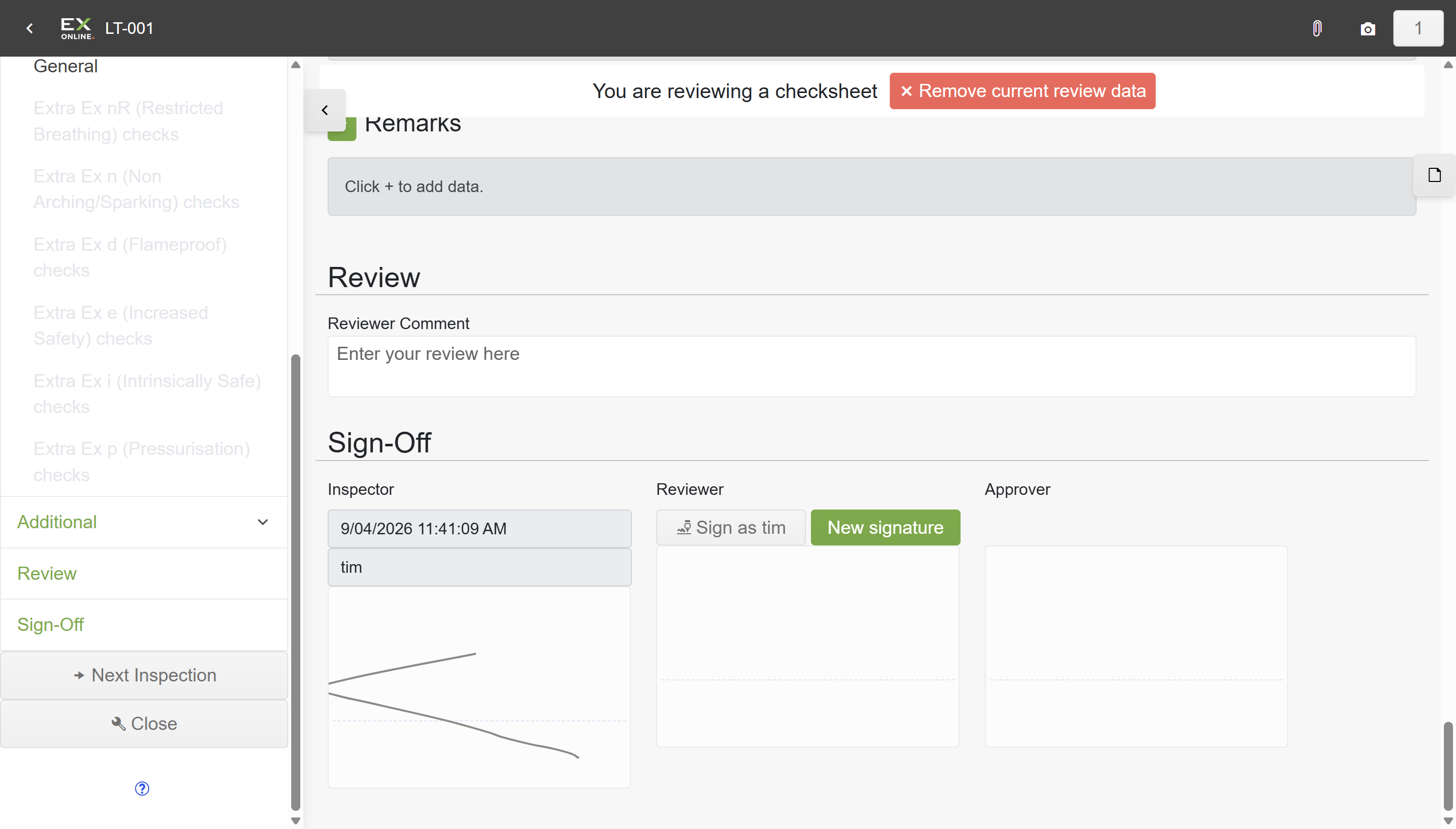
Scroll to the Review section in the sidebar and enter your comments in the Reviewer Comment field.
Signing off as reviewer
Section titled “Signing off as reviewer”-
In the sidebar, click Sign-Off.
-
Under the Reviewer column, click Sign as [your name] to sign off — or click New signature first if you haven’t set up a signature yet.
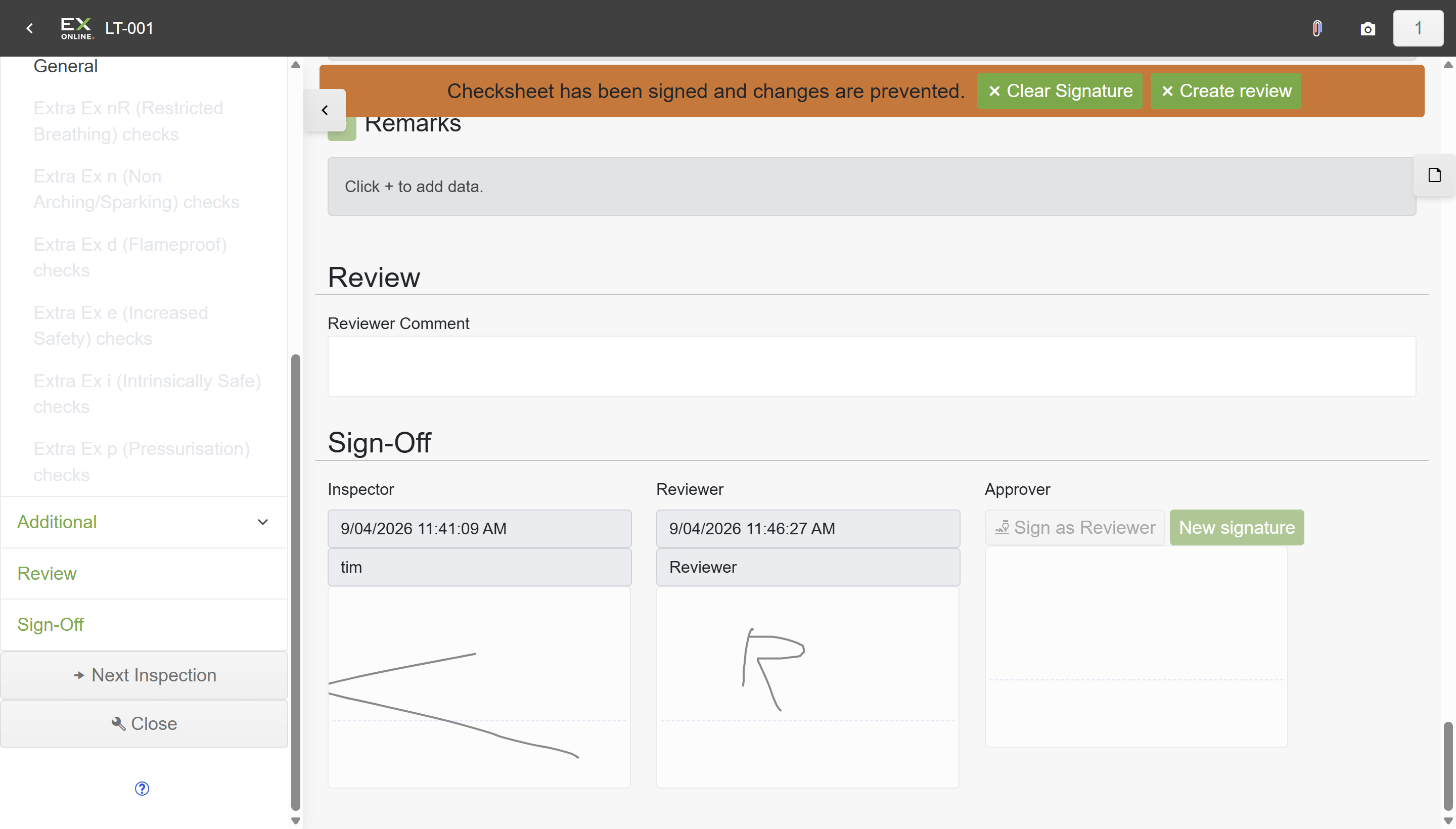
The check sheet locks again with the reviewer’s signature recorded alongside the inspector’s. The Create review button reappears for the approver.
Signing off as approver
Section titled “Signing off as approver”If a third sign-off is required, the approver repeats the same process:
- Click Create review on the reviewer-signed check sheet.
- Review the check sheet and add comments if needed.
- Click Sign as [your name] under the Approver column.
Uploading after review
Section titled “Uploading after review”Once all required sign-offs are complete, upload the results to Tag Browser. The upload includes the full chain of signatures.
Related Topics
Section titled “Related Topics”- Filling In the Inspection Check Sheet — Complete inspections in the Inspection App
- Uploading Inspection Results — Upload completed results via file or QR code
- Merging Work Packs — Combine results from multiple inspectors