
Defect Window
The Defect Window provides detailed access to a single defect record. It is opened via the green circle icon (three dots) on the left of any defect row. The icon turns gray while the window is open. Only one Defect Window can be open at a time.
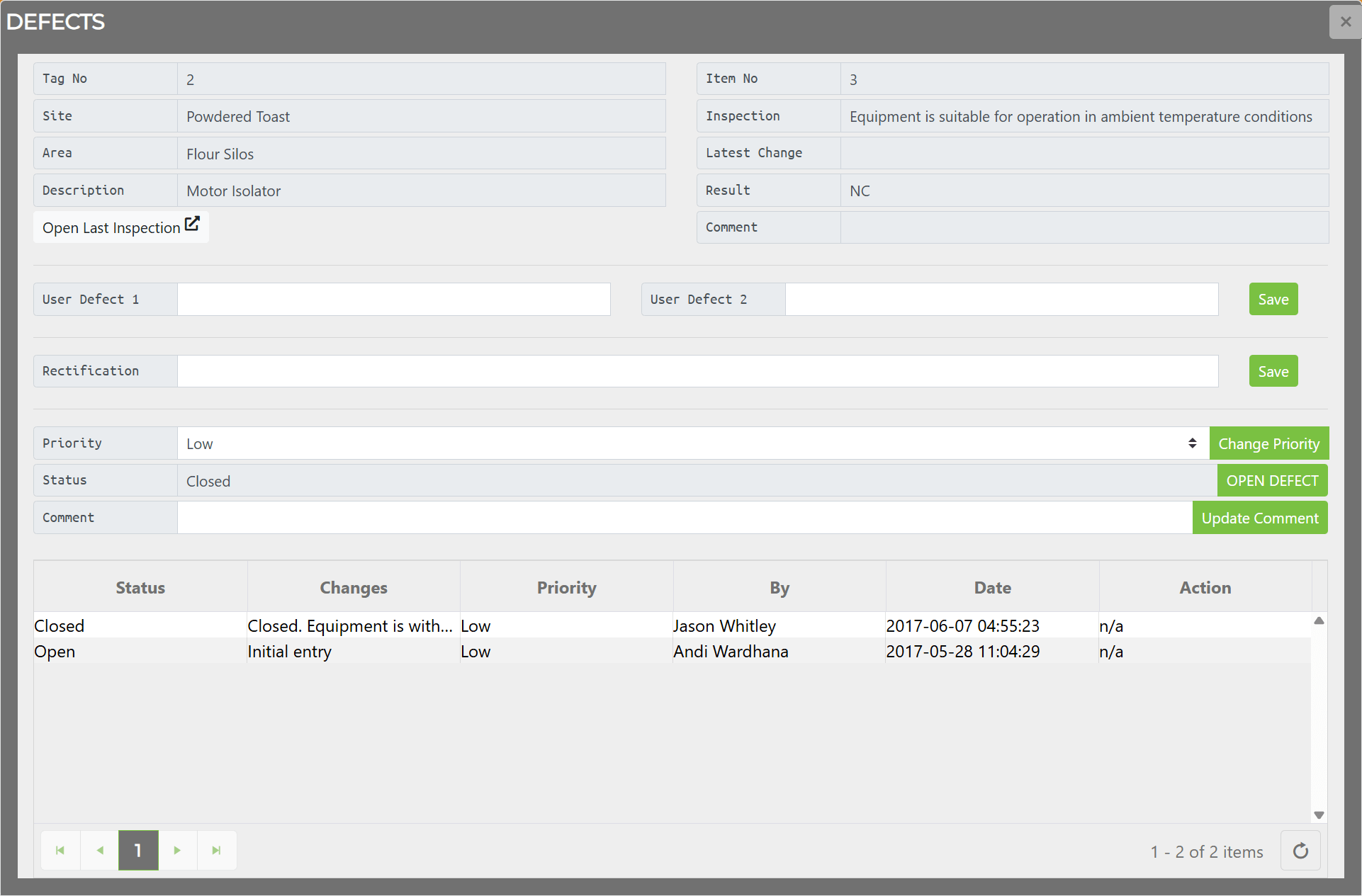
Fields
Section titled “Fields”| Field | Editable | Description |
|---|---|---|
| Tag No. | No | Equipment tag number |
| Site | No | Equipment site |
| Area | No | Equipment area |
| Description | No | Equipment description |
| Item No | No | Inspection check-sheet item number |
| Inspection | No | Inspection question text that generated the defect |
| Latest Change | No | Timestamp of the most recent modification |
| Result | No | Inspection result code — N (Non-Conformity) or NC (Not Checked) |
| Comment (read-only) | No | Comment recorded when the defect was closed or last modified |
| User Defect 1 / 2 | Yes | User-defined custom fields |
| Rectification | Yes | Notes on how to rectify the defect |
| Priority | Yes | High / Medium / Low / Unassigned. The Change Priority button saves the new value. |
| Status | Yes | Open or Closed. The Open Defect / Close Defect button toggles the state. |
| Comment (editable) | Yes | Free-text field. The Update Comment button saves the current value. |
The Open Last Inspection button opens the inspection check sheet that generated the defect. It is only present when the defect originated from an inspection upload.
Change History
Section titled “Change History”The Defect Window includes a change history section showing all modifications made to the defect:
| Column | Description |
|---|---|
| Status | Open or Closed at the time of the change |
| Changes | Description of what changed |
| Priority | Priority level at the time of the change |
| By | Who made the change |
| Date | When the change occurred (UTC) |
| Action | Related action, if any |
Related Topics
Section titled “Related Topics”- Defects — DEFECTS tab grid, toolbar, and columns
- Managing Defects — Creating, closing, and managing defects
- Equipment Window — Defects tab within the Equipment Window