
Downloading an IWP
Choose the equipment you want to inspect, build an Inspection Work Pack (IWP), and transfer it to your device via QR code or direct file download.
Downloading an Inspection Work Pack
Section titled “Downloading an Inspection Work Pack”To create and download an IWP for selected equipment:
-
Go to the EQUIPMENT tab in the orange header bar.
-
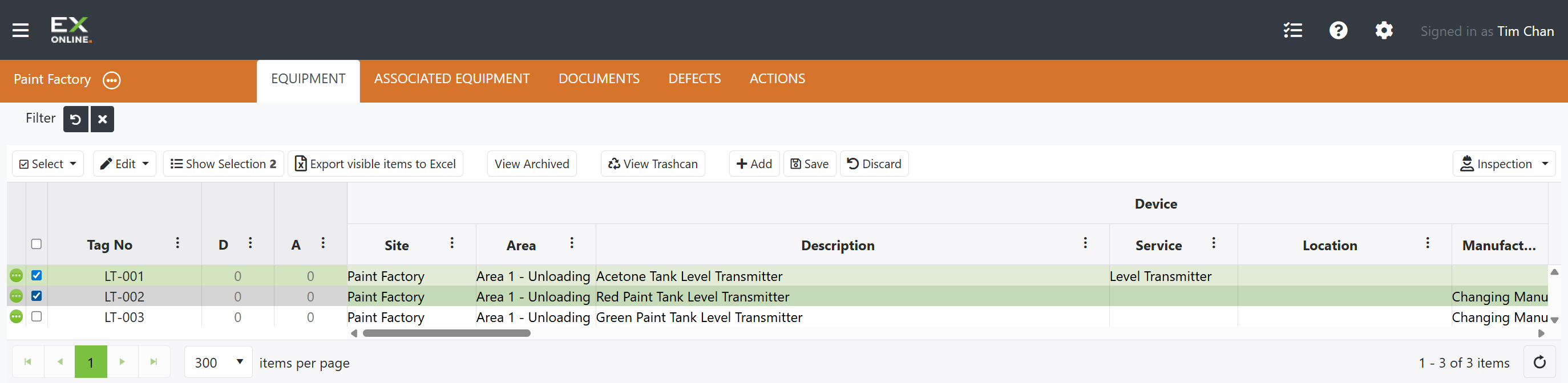
Select the equipment items you want to inspect using the checkboxes, or use the Select dropdown to select all items on the current page.
-
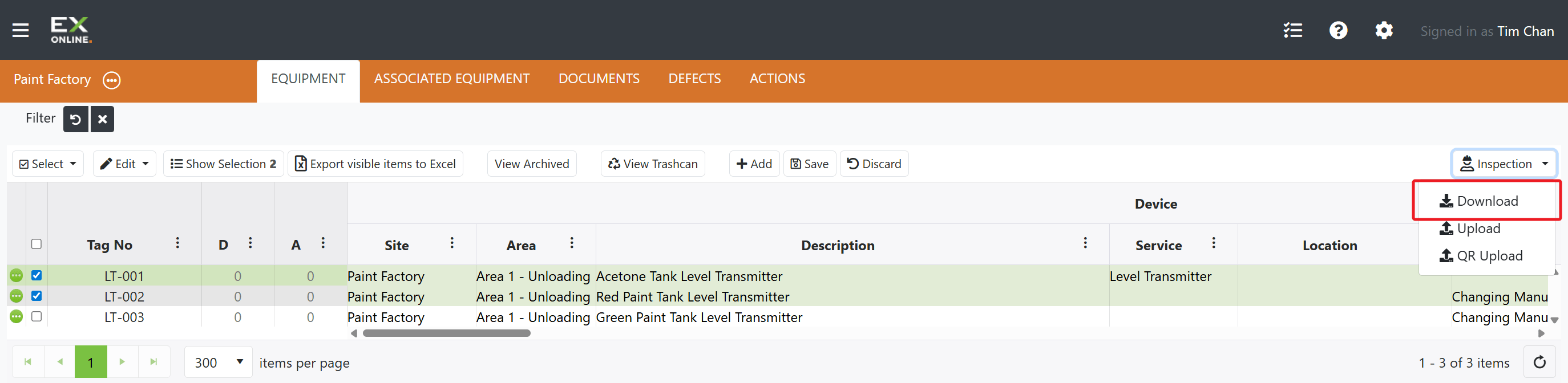
Click the Inspection dropdown in the toolbar and select Download.
-
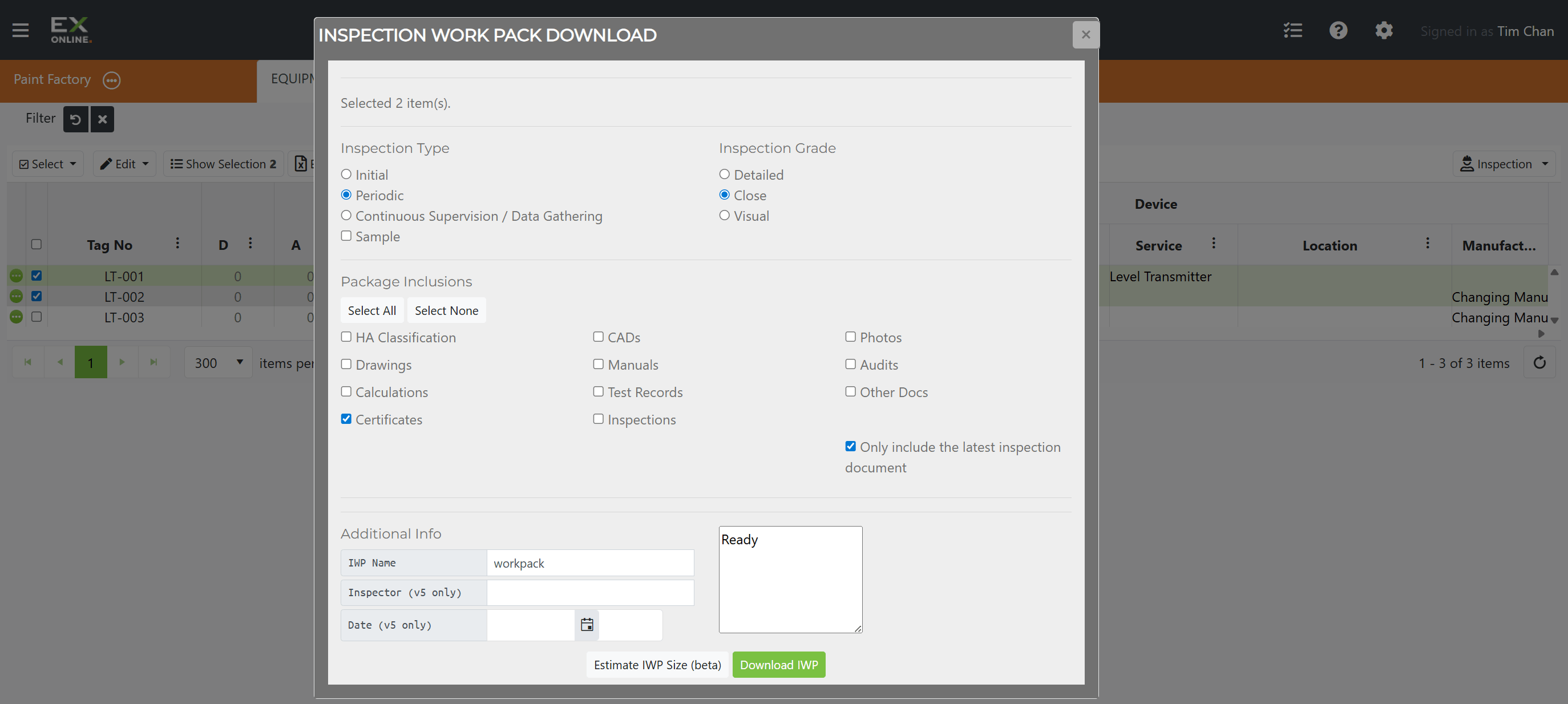
Configure the inspection type, grade, package inclusions, and IWP name in the Checksheet Options dialog.
-
(Optional) Click Estimate IWP Size (beta) to preview the download size.
-
Click Download IWP to generate and download the package.
-
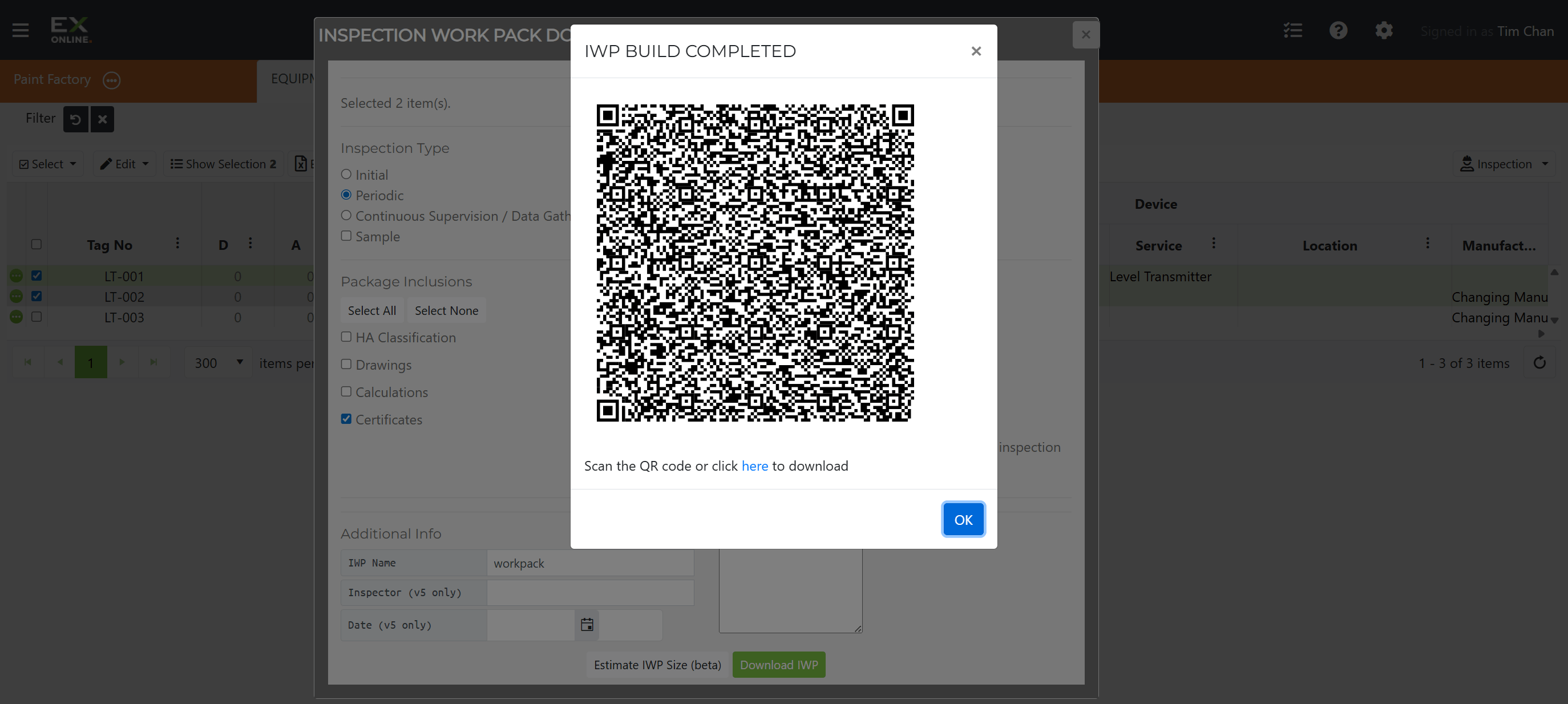
The download completes and a QR code and download link are shown.
See Inspections — Checksheet Options for a full breakdown of every setting in the Checksheet Options dialog.
Transferring the IWP to Your Device
Section titled “Transferring the IWP to Your Device”The IWP Build Completed dialog gives you two ways to get the package onto your inspection device. Both require the Ex-Online Inspection App — see Installing the App if you haven’t set it up yet.
QR code scan
Section titled “QR code scan”Use this when the inspection device has internet access:
-
Open the Ex-Online Inspection App on your device.
-
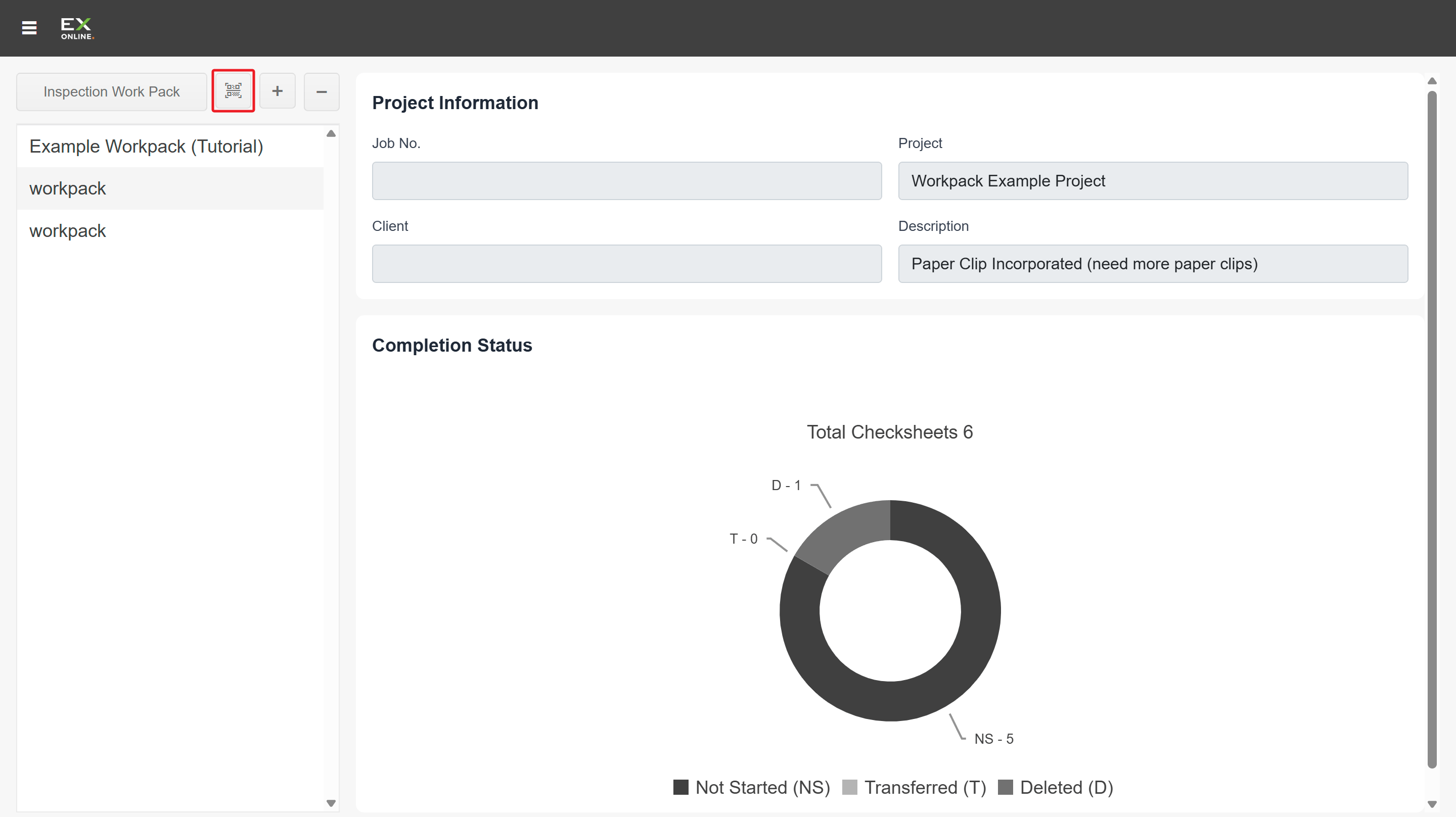
On the main screen, tap QR Scan.
-
Scan the QR code shown in the IWP Build Completed dialog — the IWP downloads directly into the app.
Direct file download
Section titled “Direct file download”Use this when the inspection device is offline or you want to transfer the file manually:
-
Click the here link in the IWP Build Completed dialog to save the
.iwpfile to your computer. -
Transfer the file to your inspection device (via USB, network share, or cloud storage).
-
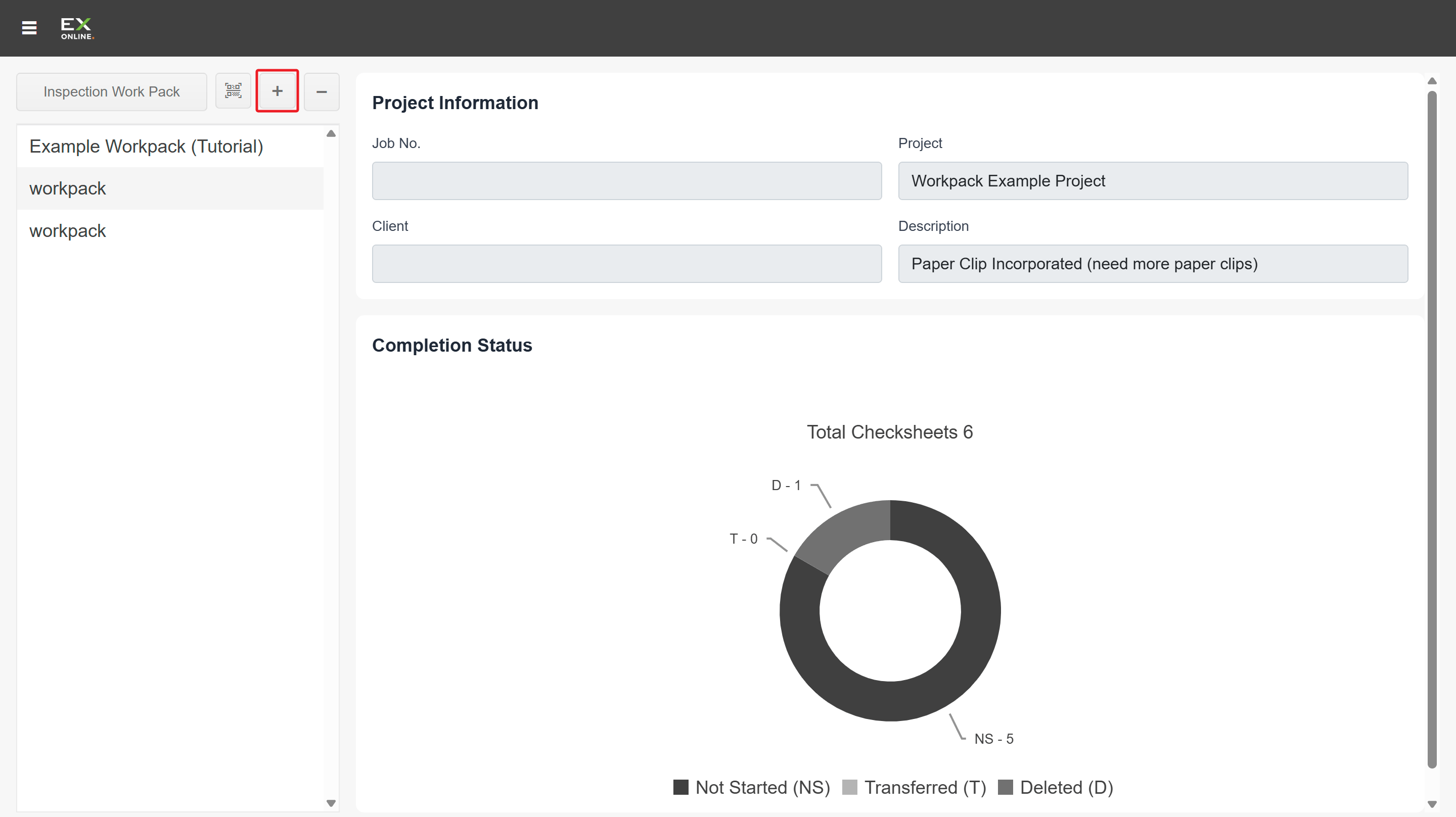
In the Inspection App, tap the + button on the main screen and select the file.
Next steps
Section titled “Next steps”Once the IWP is loaded in the app, you can complete it using either method:
- Ex-Online Inspection App (recommended) — free application for Windows, Android, and iOS with built-in camera integration, digital sign-off, and multi-inspector support. See Filling in the Check Sheet for a walkthrough.
- PDF Editor — open the IWP in any PDF editor (Xodo recommended), mark conformance (C) or non-conformance (N) for each check point, then save the file.
Both methods support offline use — inspections can be completed without internet connectivity, then uploaded when reconnected.
After completing an inspection, see Uploading Inspection Results to send results back to Tag Browser.
Troubleshooting
Section titled “Troubleshooting”| Issue | Solution |
|---|---|
| IWP download is slow or fails | Large packages with many documents take longer. Try reducing Package Inclusions or selecting fewer items |
| QR code won’t scan | Ensure the camera has a clear view and the QR code is fully visible. Check that both devices have internet access |
| Can’t open .iwp file on device | Check that the file still has the .iwp extension and isn’t 0 KB. If it won’t open, download it again from the IWP Build Completed dialog |
Related Topics
Section titled “Related Topics”- Uploading Inspection Results — Upload completed results via file or QR code
- Inspections Reference — Full description of the IWP system, download options, and inspection history
- Inspection App Reference — Dedicated app for completing inspections offline