
Actions
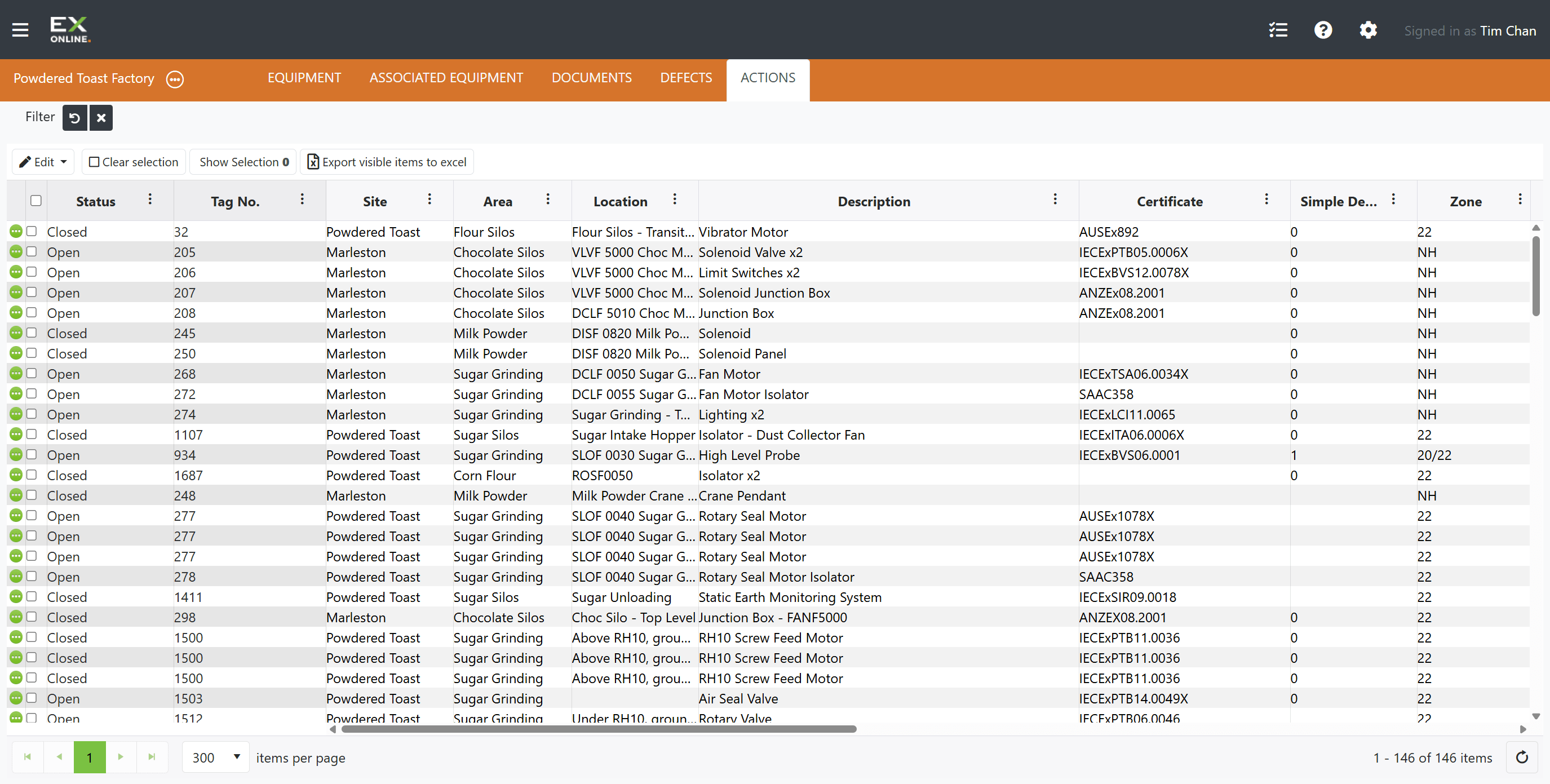
Actions track follow-up tasks, equipment reviews, and corrective measures. The ACTIONS tab on the Project Dashboard displays a paginated grid of all actions in the project, with toolbar controls for editing, filtering, and exporting.
Action Sources
Section titled “Action Sources”Actions are created in three ways:
| Source | Description |
|---|---|
| Inspection upload | Uploading IWP results auto-generates actions linked to equipment items based on inspection findings. |
| Manual entry | The Add Action button in the Equipment Window’s Actions tab creates a new action with a description and priority. |
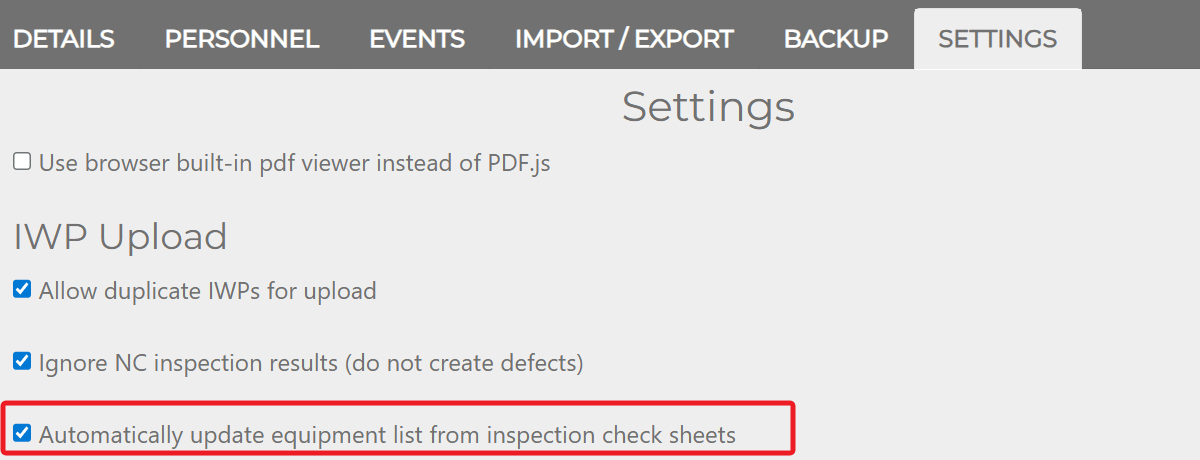
| Equipment Purgatory | New equipment identified during field inspections enters the “Equipment Purgatory” queue, and a corresponding action is created for each item pending review. Approval moves the equipment to the main list and closes the action. This source is only active when the Automatically update equipment list from inspection check sheets setting is unchecked (Project Window > SETTINGS tab). |
Types of Actions
Section titled “Types of Actions”| Type | Description |
|---|---|
| Follow Up Actions | General follow-up tasks for equipment |
| ICS Equipment Updates | Actions generated from inspection results |
| New Associated Equipment | Actions for linking new associated equipment |
| Tag Reviews | Actions for reviewing equipment tags |
| Equipment Purgatory | New equipment items pending review and approval |
Actions Toolbar
Section titled “Actions Toolbar”The toolbar includes filter and sorting controls for narrowing the grid — see Filtering and Sorting for details. The remaining buttons are listed left to right below.
| Button | Description |
|---|---|
| Edit | Opens the Edit menu — see Edit menu options below. |
| Clear selection | Deselects all action rows. |
| Show Selection | Restricts the grid to selected actions only. Other active filters still apply (logical AND). |
| Export visible items to Excel | Exports visible actions to a spreadsheet. Respects current filter and sort settings. |
Edit menu options
Section titled “Edit menu options”| Option | Description |
|---|---|
| Open | Reopens previously closed actions |
| Close | Closes selected actions with an optional comment |
| Change Priority | Sets priority to High, Medium, Low, or Unassigned |
| Add Comment | Appends a comment to selected actions |
| Update Other | Sets values for User Action 1/2 custom fields |
| Move / Copy | Transfers data between fields — Copy keeps the source value, Move clears it |
All Edit menu operations support bulk selection — multiple selected items are affected in one step.
Actions Grid Columns
Section titled “Actions Grid Columns”Column header controls provide sorting, filtering, and show/hide options. The Edit Column Settings icon next to any column header opens a menu for filtering, sorting, and showing or hiding columns.
| Column | Description |
|---|---|
| Expand icon | Green circle icon — opens the Action Window for that action. |
| Checkbox | Select or deselect individual rows for bulk operations. |
| Status | Open or Closed indicator |
| Tag No. | Equipment tag number |
| Site / Area / Location | Equipment location fields |
| Description | Equipment description |
| Certificate | Equipment certificate number |
| Simple Device / Zone / Protection / Group / T Class | Equipment classification and Ex rating fields |
| Type | Action type category |
| Details | Detailed description of the action (populated from ICS comments or manual entry; cannot be edited after creation) |
| Priority | High / Medium / Low / Unassigned |
| User Action 1 / 2 | User-defined custom fields (commonly used to link to SAP, Maximo, etc.) |
| Open Date | Date/time the action was created (UTC) |
| Latest Change / Last Action By / Last Action Date | Audit trail — most recent change timestamp, who made it, and when |
Expand Icons
Section titled “Expand Icons”The green circle icons (three dots) on the left edge of each row open the Action Window for that action — status, comments, custom fields, type-specific buttons, and change history. The icon turns gray while its window is open. Only one Action Window can be open at a time.
Related Topics
Section titled “Related Topics”- Action Window — Status, comments, custom fields, type-specific buttons, and change history
- Defects — DEFECTS tab on the Project Dashboard
- Managing Actions — Creating, closing, and managing actions
- Filtering and Sorting — Filter types, Filter Bar, column filters, and sorting