
Project Window
The Project Window provides access to project-level configuration and management. It is opened via the Project Options button (white circle with three dots) on the orange header bar next to the project name.
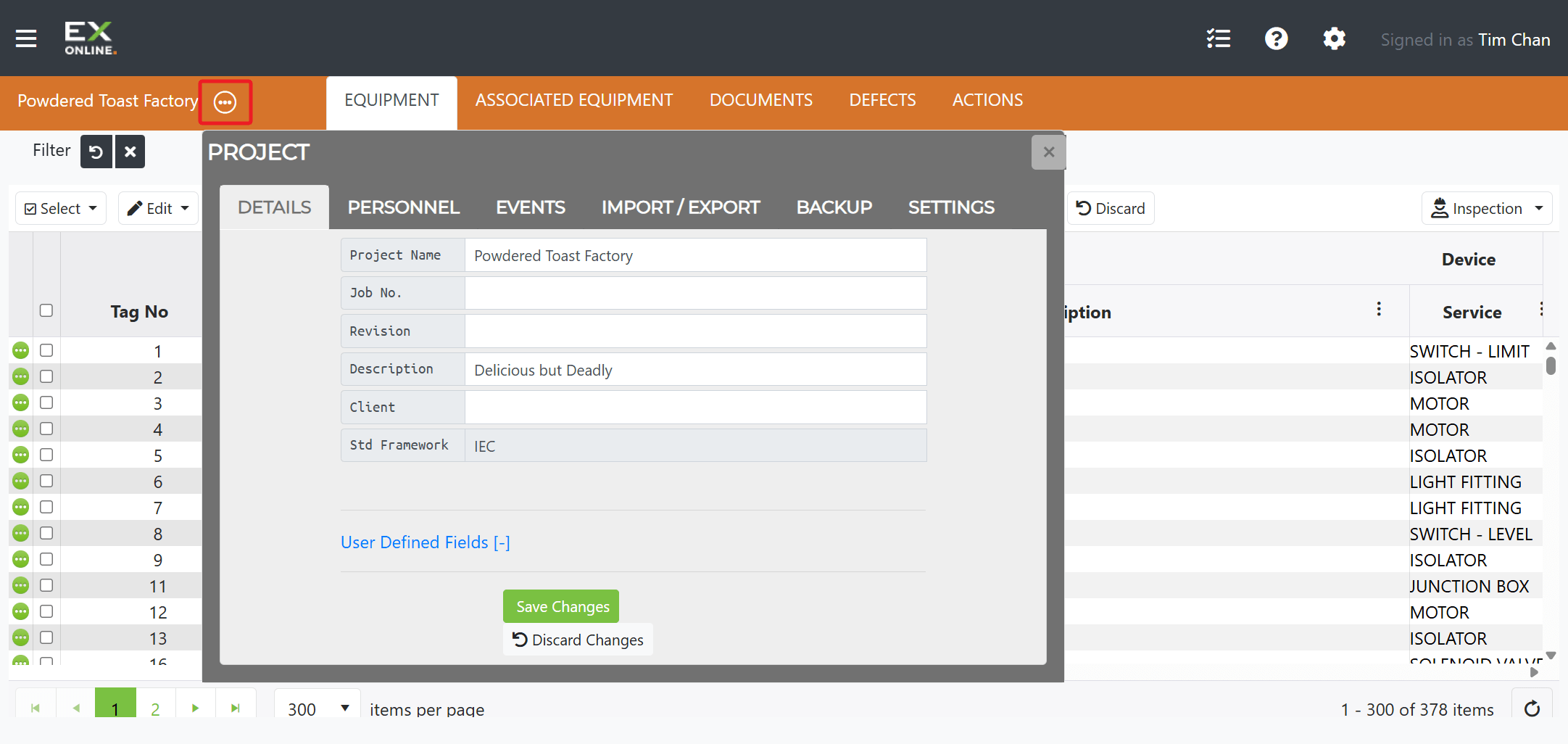
| Tab | Description |
|---|---|
| Details | Project name, description, client, standard framework, and User Defined Fields |
| Personnel | Register of people working on the project with contact information and roles |
| Events | Chronological log of project activity (backups, imports, user access) |
| Import / Export | Upload import packages and export project data |
| Backup | Create, restore, and delete project backups |
| Settings | IWP upload/download options, inspection intervals, and plugins |
Details Tab
Section titled “Details Tab”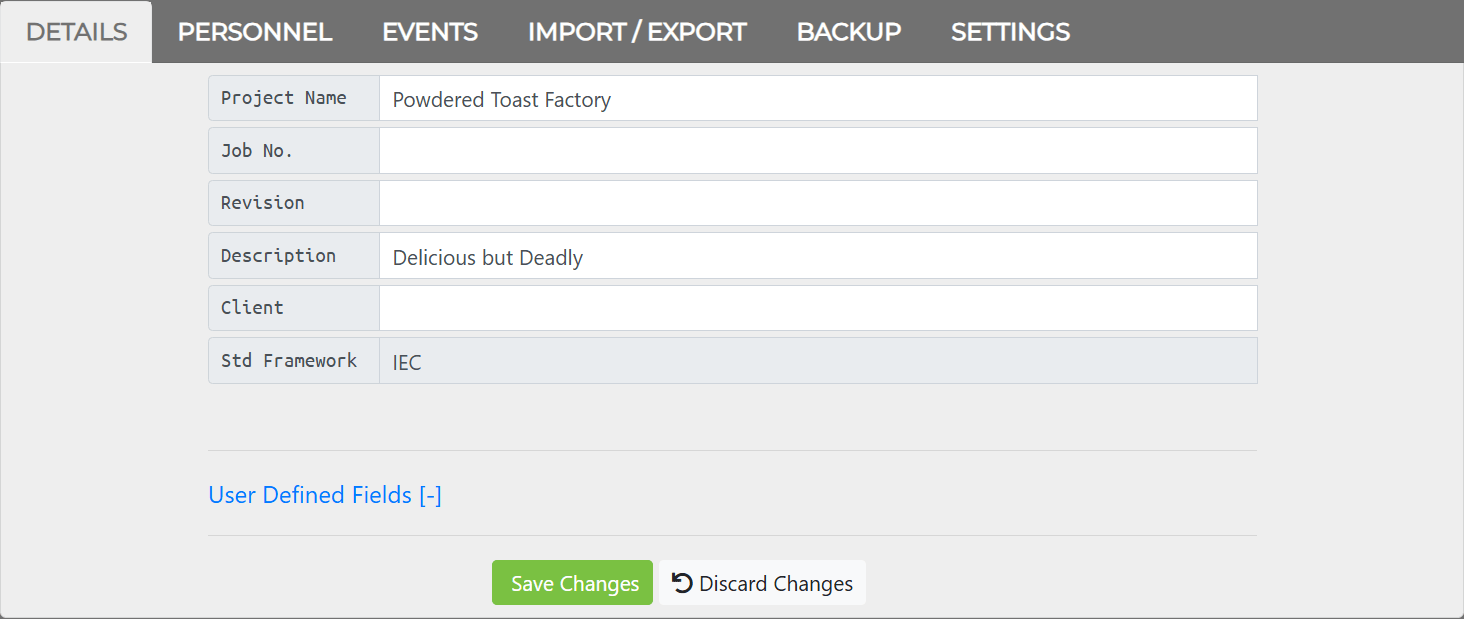
The Details tab stores core project information and User Defined Fields.
| Field | Description |
|---|---|
| Project Name | The project’s display name |
| Job No. | Optional job reference number |
| Revision | Revision identifier |
| Description | Project description |
| Client | Client name |
| Std Framework | Standard framework used for inspections (e.g. IEC) |
The User Defined Fields expander reveals six custom fields (Other_1 through Other_6) plus Defect_Other and Action_Other. These are commonly used to link to external systems (SAP, Maximo), track site-specific information, or store custom metadata.
The Save Changes button applies edits; Discard Changes cancels them.
Personnel Tab
Section titled “Personnel Tab”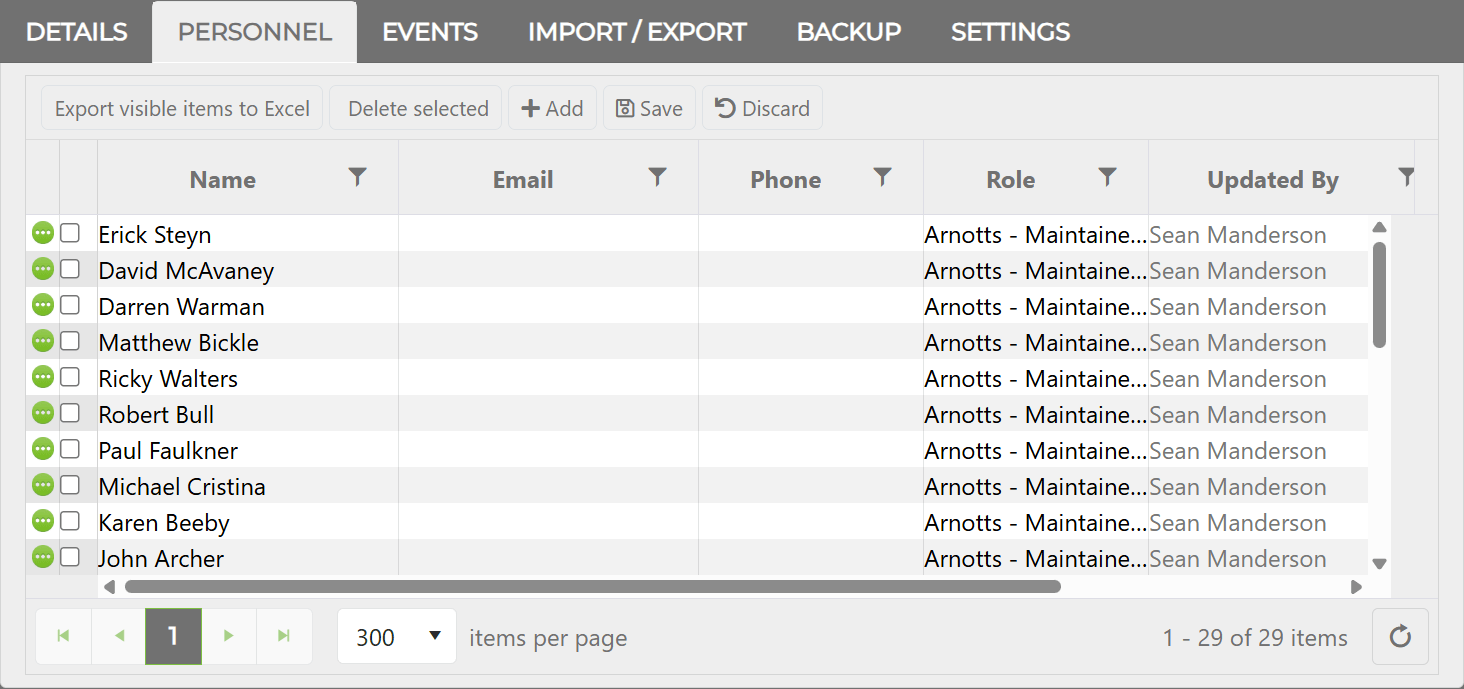
The Personnel tab maintains a register of people working on the project — inspectors, engineers, competent persons, reviewers, and approvers. Each record stores contact information, a role, and attached documents such as qualifications, certifications, CVs, and training records.
| Column | Description |
|---|---|
| Name | Person’s full name |
| Contact email address | |
| Phone | Contact phone number |
| Role | Assigned role on the project |
| Updated By | Last user to modify the record |
| Updated Date | When the record was last modified |
The toolbar provides:
| Button | Description |
|---|---|
| Export visible items to Excel | Export the personnel list to a spreadsheet |
| Delete selected | Remove selected personnel entries |
| + Add | Add a new person to the register. A record must have at least a name before documents can be attached. |
| Save | Save pending changes |
| Discard | Cancel unsaved changes |
Fields are edited inline in the grid — modified cells highlight yellow until saved.
Personnel Window
Section titled “Personnel Window”The icon on the left of a personnel row opens the PERSONNEL window with a Documents tab.
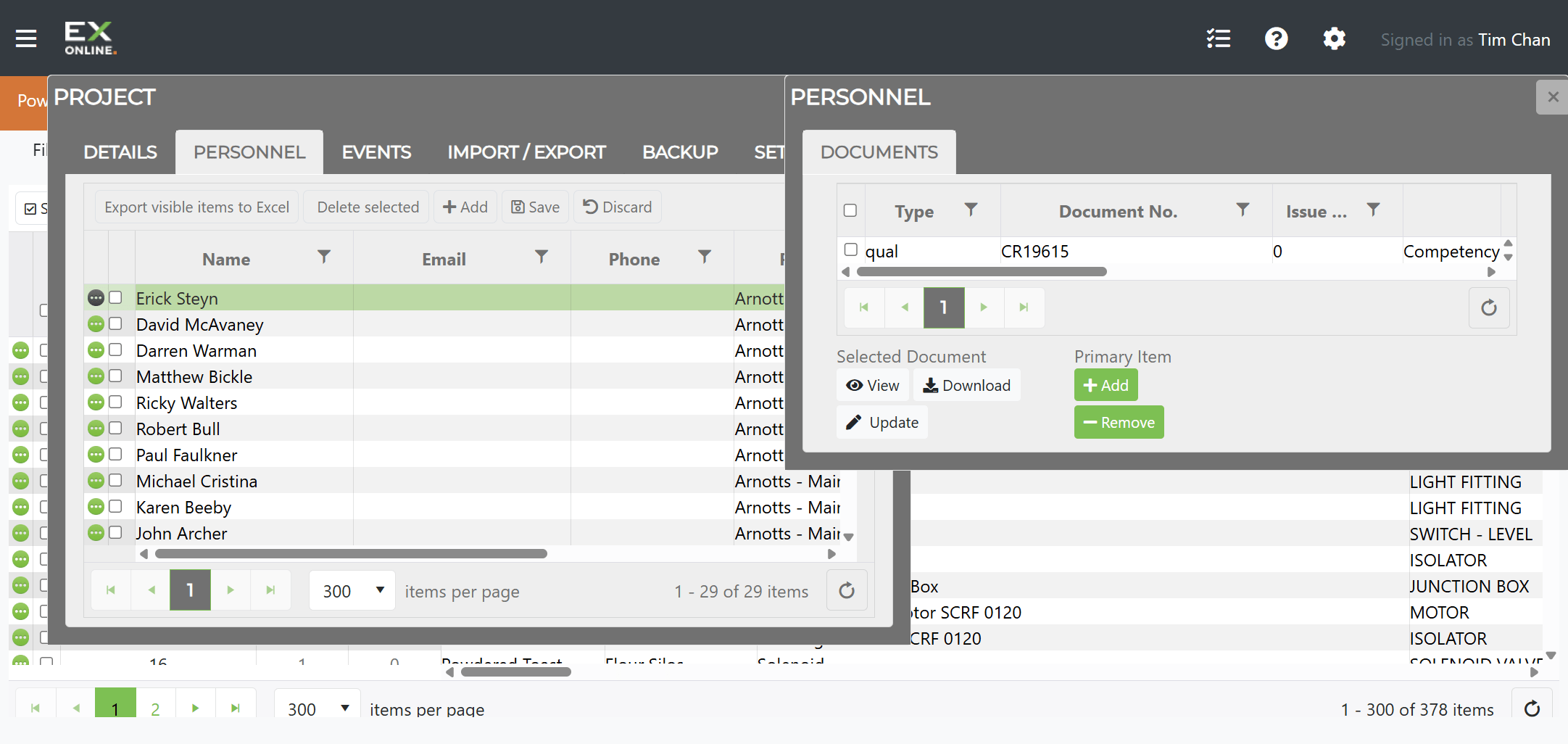
The window has two sections:
Selected Document — actions on the currently selected document:
| Button | Description |
|---|---|
| View | Open the selected document in the Ex-Online document viewer |
| Download | Download the selected document to your device |
| Update | Update the file and/or metadata of the selected document |
Primary Item — actions that add or remove documents for the personnel record:
| Button | Description |
|---|---|
| Add | Opens the Add Personnel Document dialog to attach a new document with a Document Type, Document Number, Description, Issue/Revision, and an uploaded file |
| Remove | Remove the selected document from the personnel record |
The Add Personnel Document dialog offers two document types:
| Type | Description |
|---|---|
| Qualification | Educational and professional qualifications, certifications, CVs, competency assessments, and training records |
| Other | Any other personnel-related documents |
Personnel documents can optionally be included when generating Inspection Work Packs via the Package Inclusions settings. See Inspections — Package Inclusions for details.
Events Tab
Section titled “Events Tab”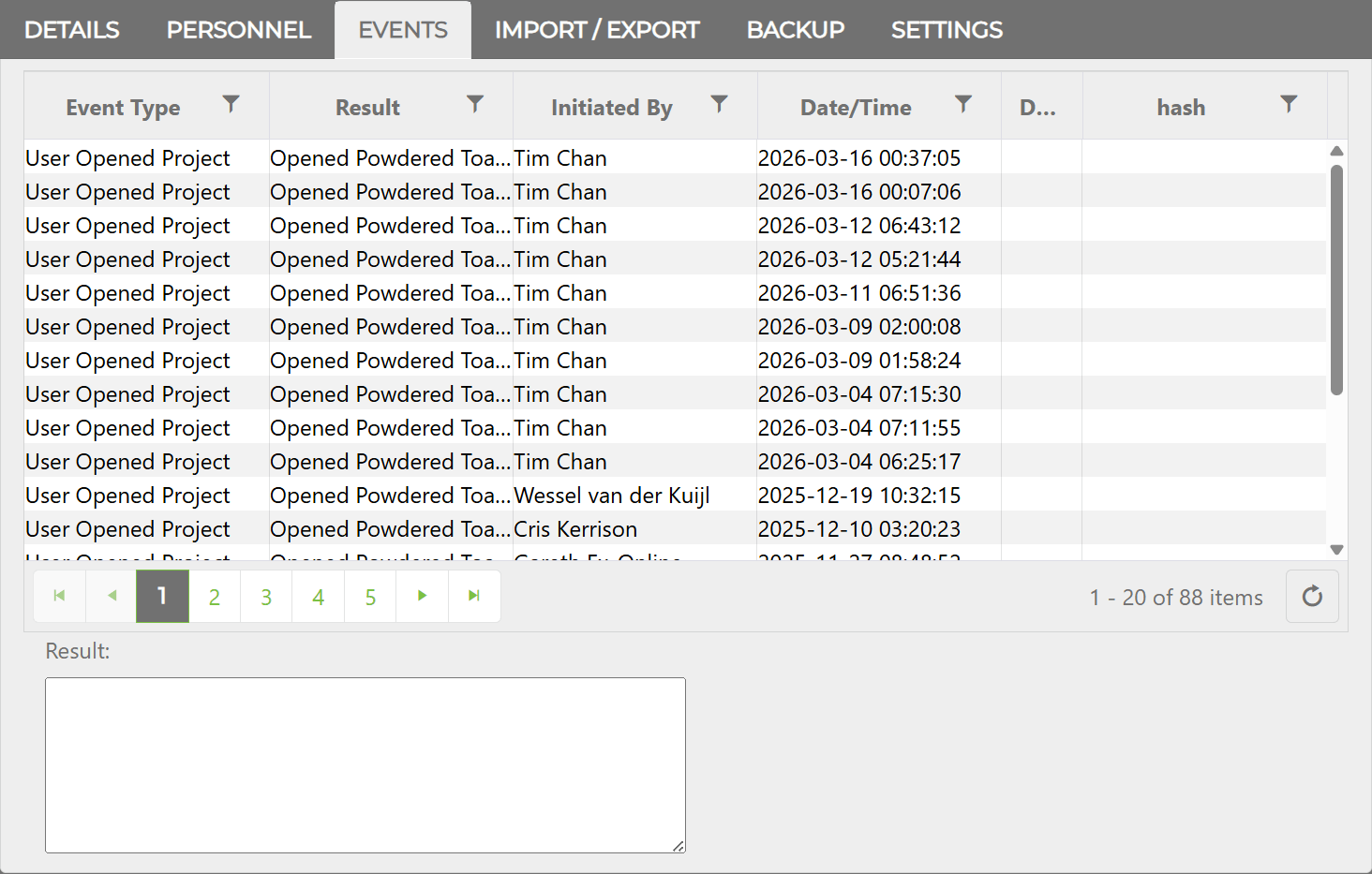
The Events tab is a chronological log of project activity. Each row records the event type, result description, who initiated it, and when it occurred. Selecting an event displays full details in the text box below the grid.
| Column | Description |
|---|---|
| Event Type | Category of the event |
| Result | Outcome or description |
| Initiated By | User who triggered the event |
| Date/Time | When the event occurred |
| Download | Download link for the event report (when available) |
Common event types include:
| Event Type | Description |
|---|---|
| Create Project | Project was created |
| Transfer Project | Project was transferred between accounts |
| Backup Project | A backup was created |
| Restore Project | A backup was restored |
| Backup Delete | A backup was deleted |
| Spreadsheet Import | Data was imported |
| Spreadsheet Export | Data was exported |
| IWP Creation | An Inspection Work Pack was generated |
| IWP Import | An Inspection Work Pack was uploaded |
| User Sent Project Invite | An invitation was sent |
| User Added to Project | A user was added |
| User Opened Project | A user opened the project |
| Change User Role | Permissions were modified |
| Append Project | One project was appended to another |
| Copy Project | A project was copied to another account |
Import/Export Tab
Section titled “Import/Export Tab”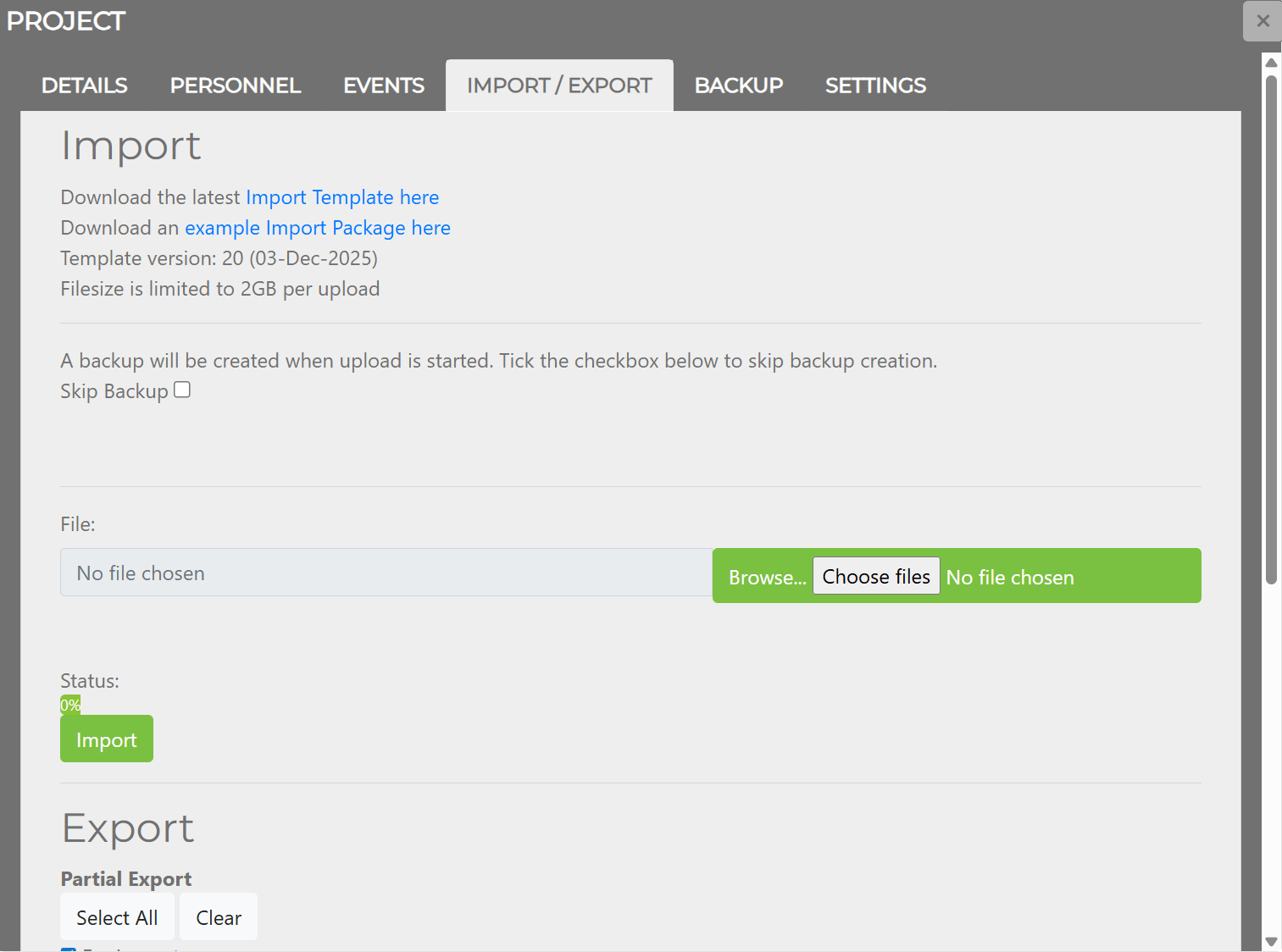
The Import / Export tab handles data import and export operations.
Import
Section titled “Import”The Import section provides links to download the latest import template and an example import package. The Browse / Choose Files button selects a .zip import package, and the Import button processes it. The system displays a summary of imported, ignored, and failed items.
A backup is created automatically before each import. The Skip Backup checkbox bypasses this.
For step-by-step instructions, see Importing Data. For the file format, see Import Package Format.
Export
Section titled “Export”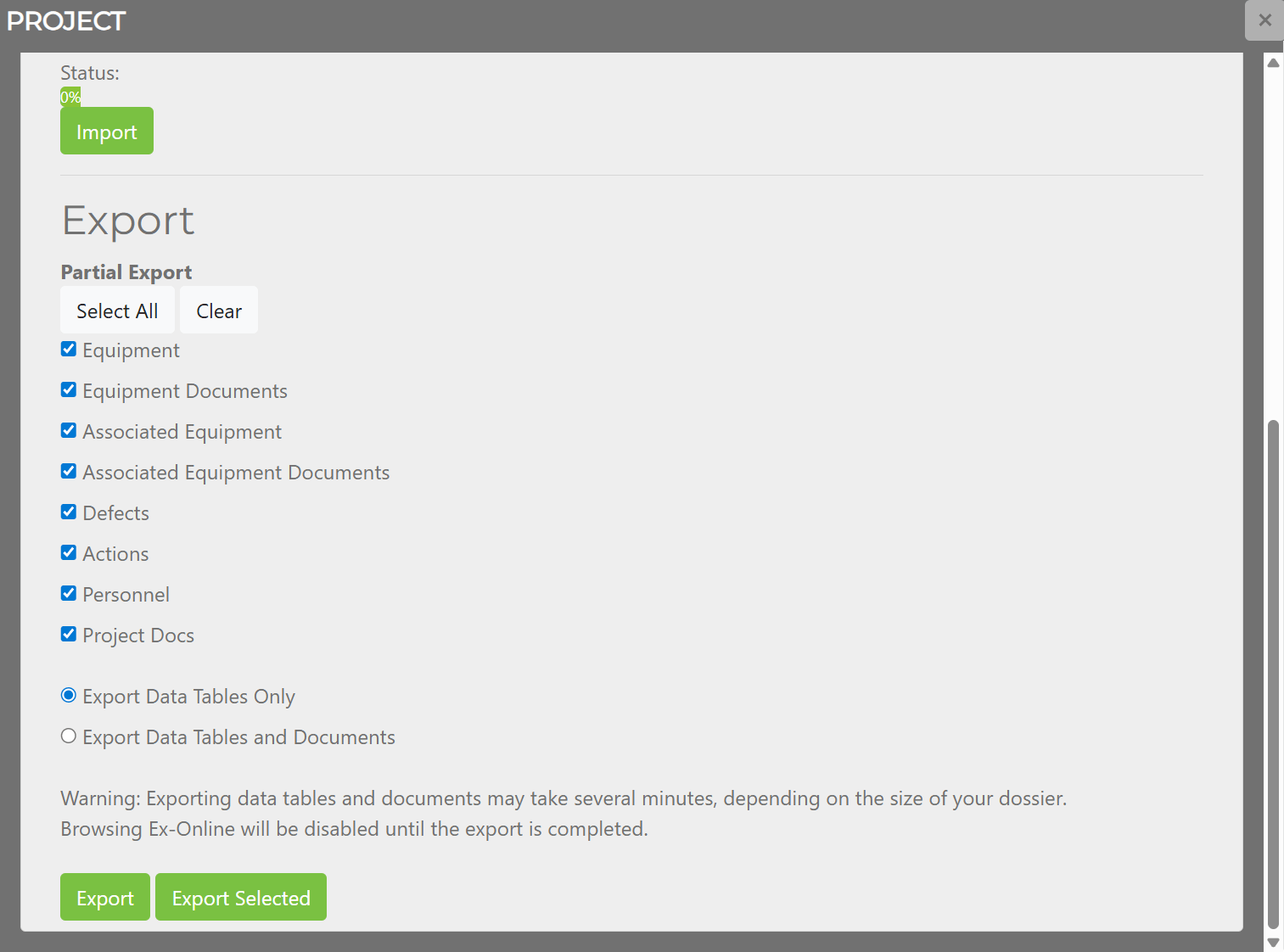
The Export section supports full and partial exports. Partial Export provides checkboxes to select which data types to include (Equipment, Documents, etc.), with Select All / Clear buttons for convenience. The Export button downloads the project dossier for the selected categories.
For step-by-step instructions, see Exporting Data.
Backup Tab
Section titled “Backup Tab”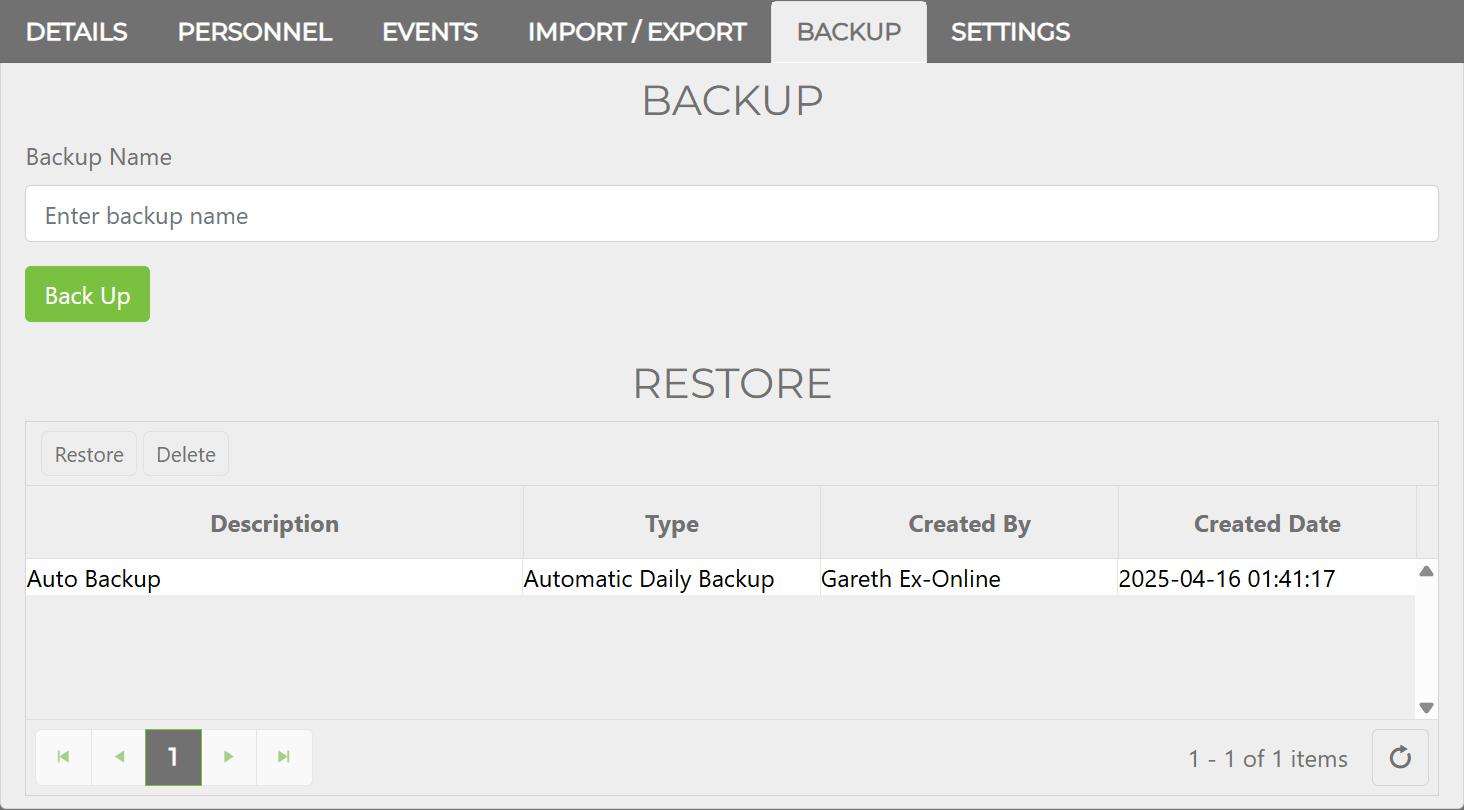
The Backup tab manages project backups. A backup captures a snapshot of all equipment items, documents, defects, actions, associated equipment links, and project settings at a point in time.
The BACKUP section at the top provides a name field and Back Up button to create a new backup. The RESTORE section below lists existing backups with Restore and Delete buttons.
| Column | Description |
|---|---|
| Description | The backup name |
| Type | Manual or Automatic Daily Backup |
| Created By | User who created the backup |
| Created Date | When the backup was created |
| Operation | Description |
|---|---|
| Back Up | Creates a new backup with the specified name. Progress is shown via ribbon notifications. |
| Restore | Restores the selected backup. A confirmation prompt warns that current data will be overwritten. |
| Delete | Permanently removes the selected backup. This action is irreversible. |
For step-by-step instructions, see Backing Up Projects.
Settings Tab
Section titled “Settings Tab”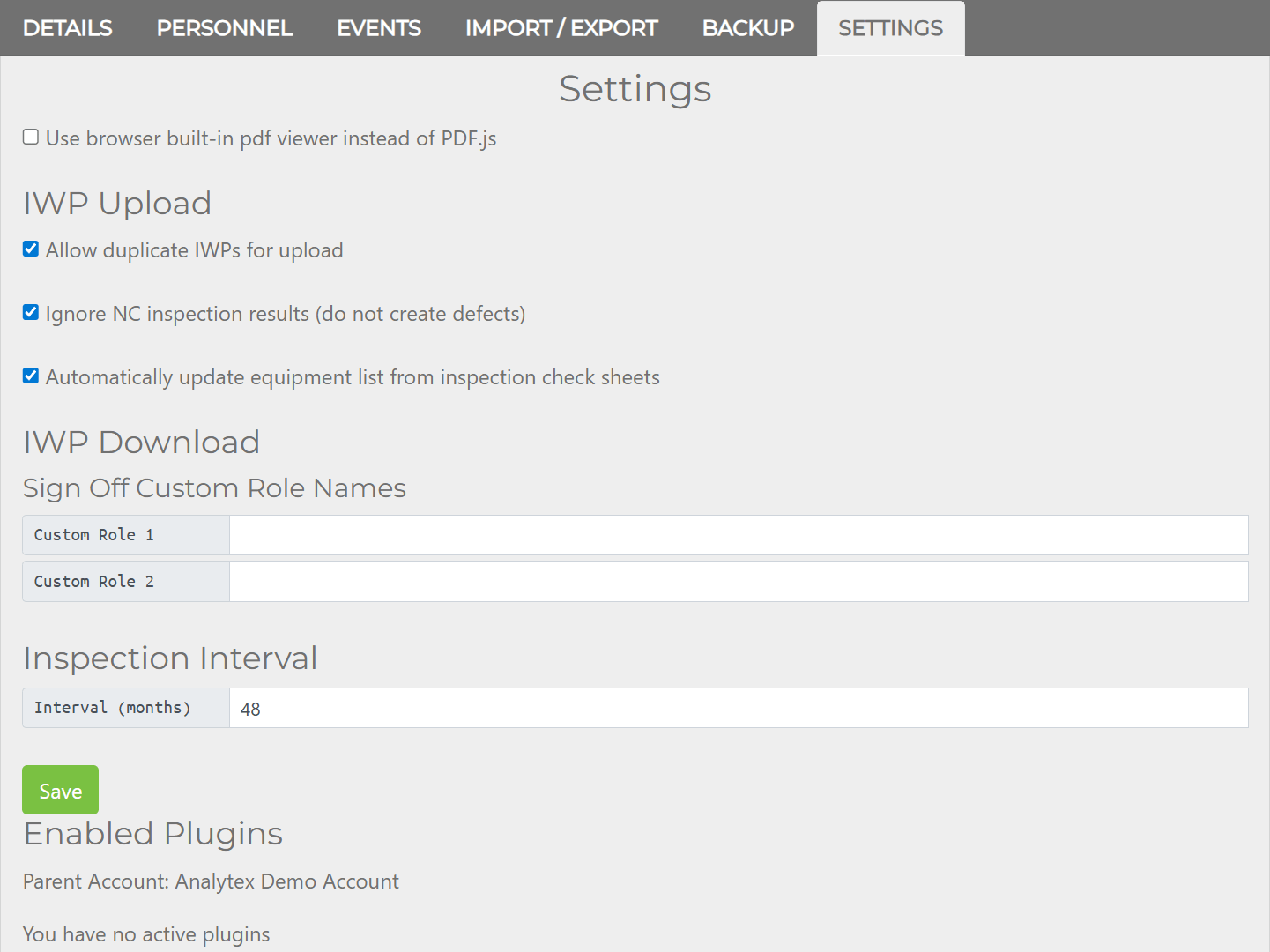
The Settings tab contains project-specific configuration for inspections and plugins.
PDF Viewer
Section titled “PDF Viewer”| Setting | Description |
|---|---|
| Use browser built-in pdf viewer instead of PDF.js | When enabled, documents open in the browser’s native PDF viewer rather than the embedded PDF.js viewer |
IWP Upload
Section titled “IWP Upload”| Setting | Description |
|---|---|
| Allow duplicate IWPs for upload | When enabled, allows uploading an IWP that has already been uploaded |
| Ignore NC inspection results (do not create defects) | When enabled, Not Checked (NC) results in imported IWPs will not create defects |
| Automatically update equipment list from inspection check sheets | When enabled, equipment details are auto-updated from check sheets. When disabled, the user must review and approve changes. |
IWP Download
Section titled “IWP Download”| Setting | Description |
|---|---|
| Custom Role 1 | Optional custom sign-off role name for IWP check sheets |
| Custom Role 2 | Optional second custom sign-off role name |
Inspection Interval
Section titled “Inspection Interval”| Setting | Description |
|---|---|
| Interval (months) | Default interval between inspections, used to calculate the next inspection date |
Enabled Plugins
Section titled “Enabled Plugins”Displays the parent account and lists any active plugins. Plugins extend the project with additional functionality (e.g., AnalytEx analytics).
Related Topics
Section titled “Related Topics”- Project Dashboard Interface — Dashboard layout and tabs
- Importing Data — Step-by-step import guide
- Exporting Data — Step-by-step export guide
- Backing Up Projects — Step-by-step backup guide
- User Permissions — Permission reference