
Multi-Factor Authentication
Multi-Factor Authentication (MFA) adds a second verification step when signing in to Ex-Online. After entering a password, the user provides a one-time code from an authenticator app on their phone.
MFA applies to all users who sign in at cloud.ex-online.com or ex-online.com. Users who sign in via Single Sign-On (SSO) are not required to enrol.
Supported Authenticator Apps
Section titled “Supported Authenticator Apps”Any TOTP-based (Time-based One-Time Password) authenticator app works with Ex-Online, such as Google Authenticator or Microsoft Authenticator.
Account Creation
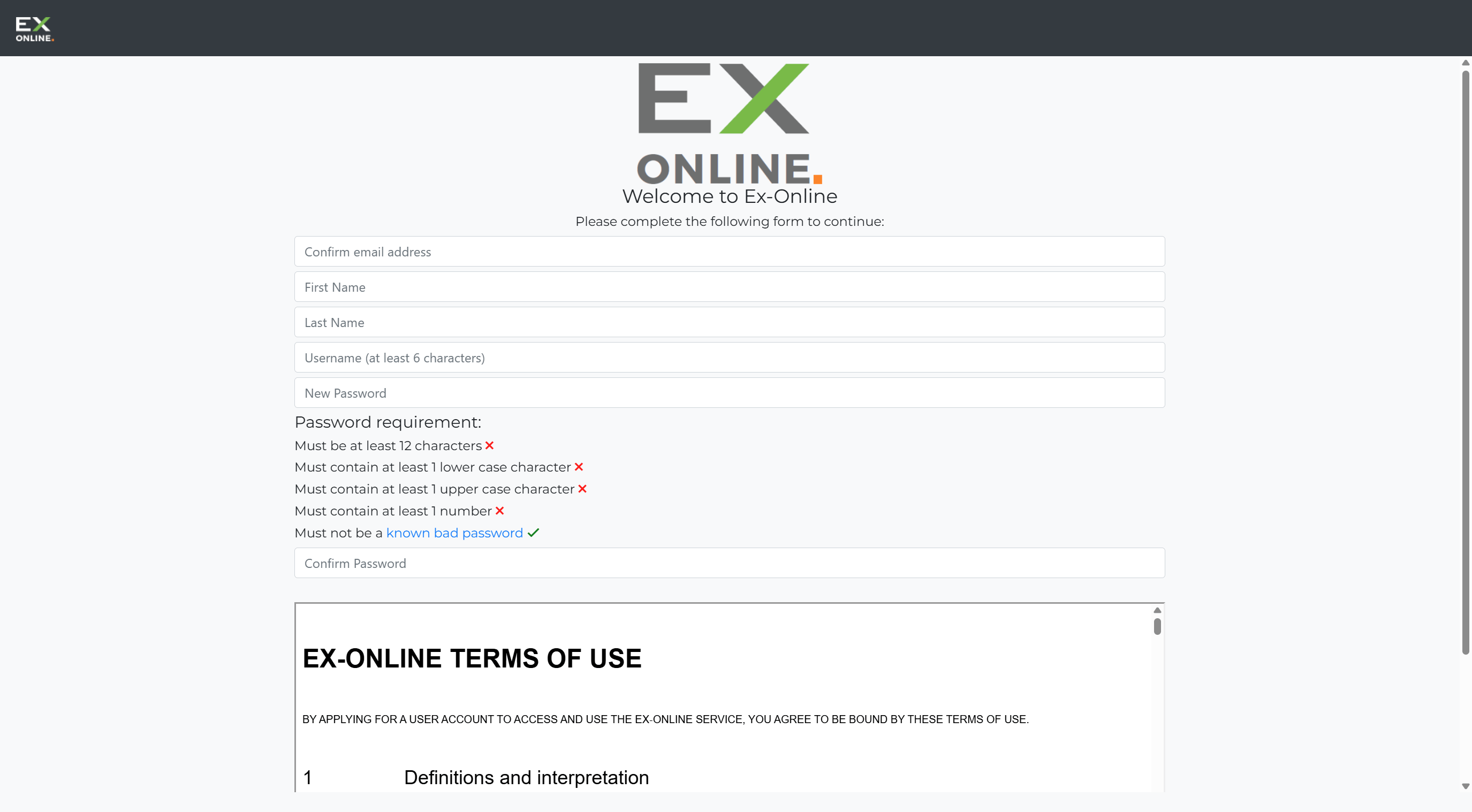
Section titled “Account Creation”Ex-Online accounts are invite-only. An account Owner or Manager sends an invite link to the user’s email address. The link opens a registration form where the user confirms their email, sets a username and password, and accepts the Terms of Use.
Enrolment Screen
Section titled “Enrolment Screen”After the first successful sign-in, the browser redirects to the MFA enrolment screen. This screen displays a QR code and a text field for a one-time code.
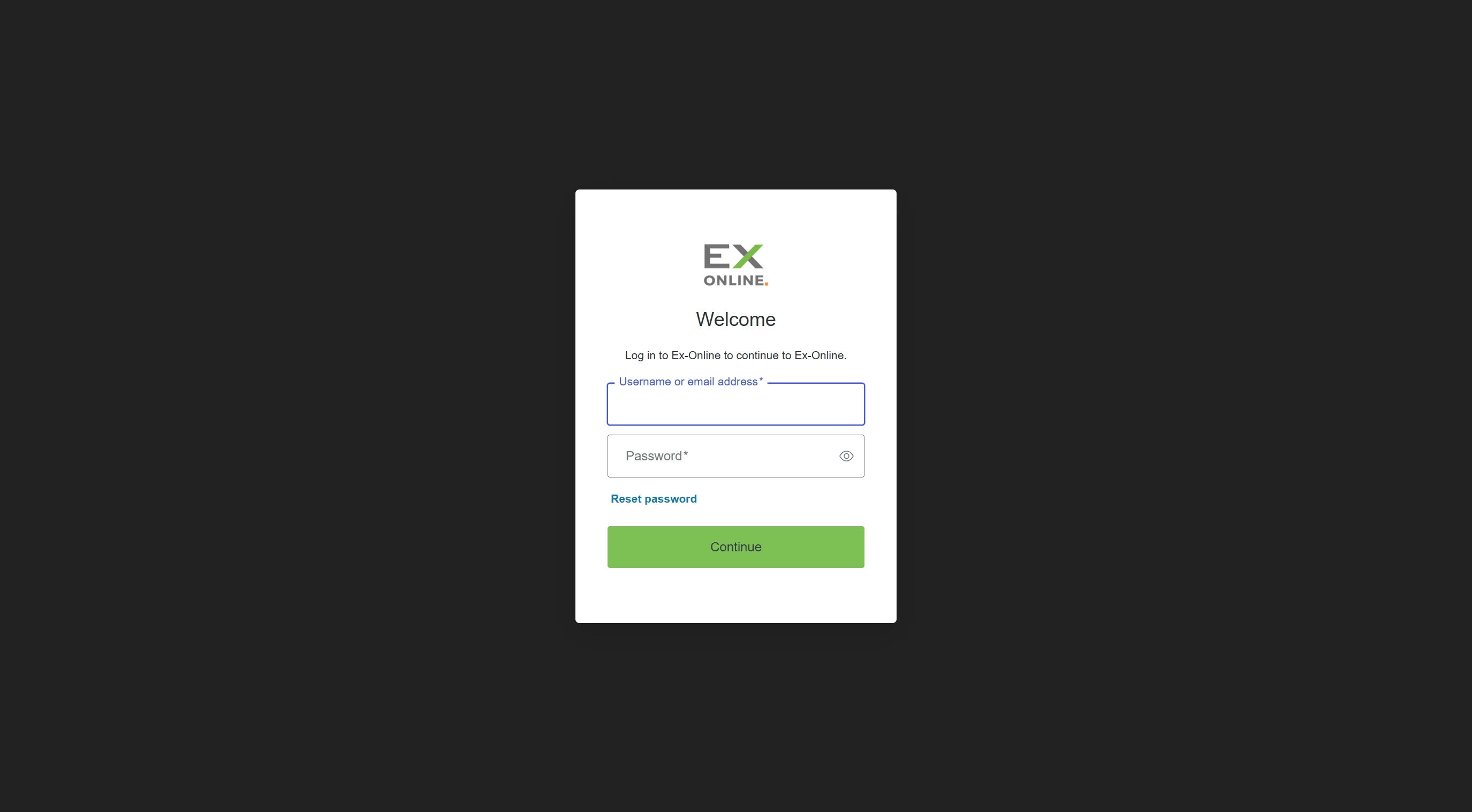
The user scans the QR code with their authenticator app, which registers Ex-Online and begins generating one-time codes that refresh every 30 seconds. Entering a valid code in the Enter your one-time code field completes enrolment.
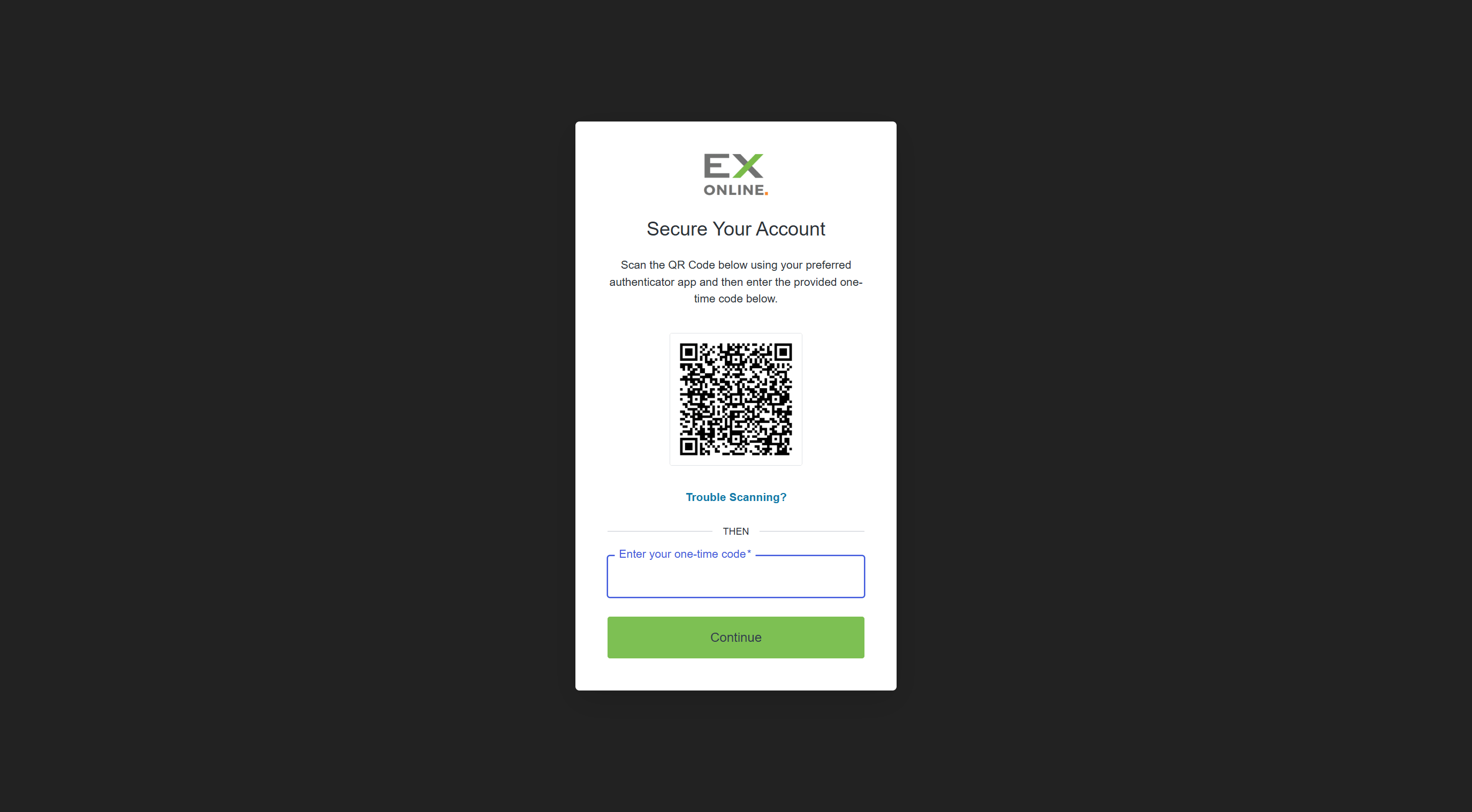
The Trouble Scanning? button reveals a text code that can be entered manually into the authenticator app — useful when the QR code cannot be scanned (e.g. the browser and authenticator are on the same device). This text code can also be saved in a password manager as a backup for re-registering on a new device.
Sign-In Prompt
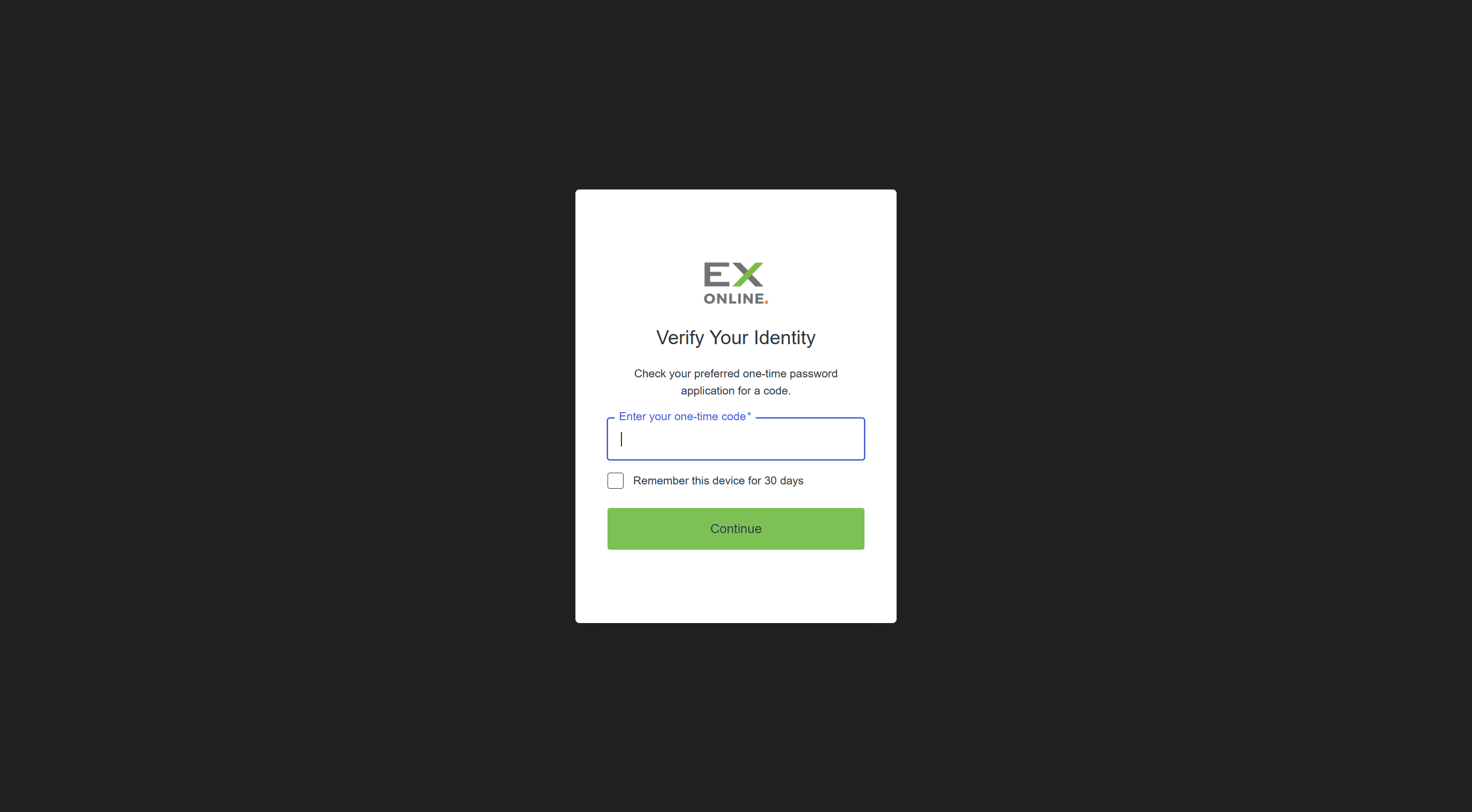
Section titled “Sign-In Prompt”On every subsequent sign-in, after entering the correct username and password, the Verify Your Identity screen appears. It has a single text field for the current one-time code from the authenticator app.
Remember This Device
Section titled “Remember This Device”The sign-in prompt includes a Remember this device for 30 days checkbox. When checked, that browser and device skip the MFA prompt for 30 days. After 30 days, or when signing in from a different browser or device, the prompt reappears.
Recovery
Section titled “Recovery”If a user loses access to their authenticator app — for example after switching phones, a factory reset, or deleting the app — contact support to have the MFA enrolment reset. After the reset, the next sign-in presents the enrolment screen again, allowing the user to register a new authenticator.
SSO Users
Section titled “SSO Users”MFA does not apply to users who sign in via Single Sign-On (SSO). SSO users authenticate through their identity provider, which may enforce its own MFA policy separately.
Related Topics
Section titled “Related Topics”- User Permissions — Account and project roles