
Equipment Window
The Equipment Window provides detailed access to all equipment data. It is opened via the green circle icon (three dots) on any equipment row. The icon turns gray while the window is open. Only one Equipment Window can be open at a time.
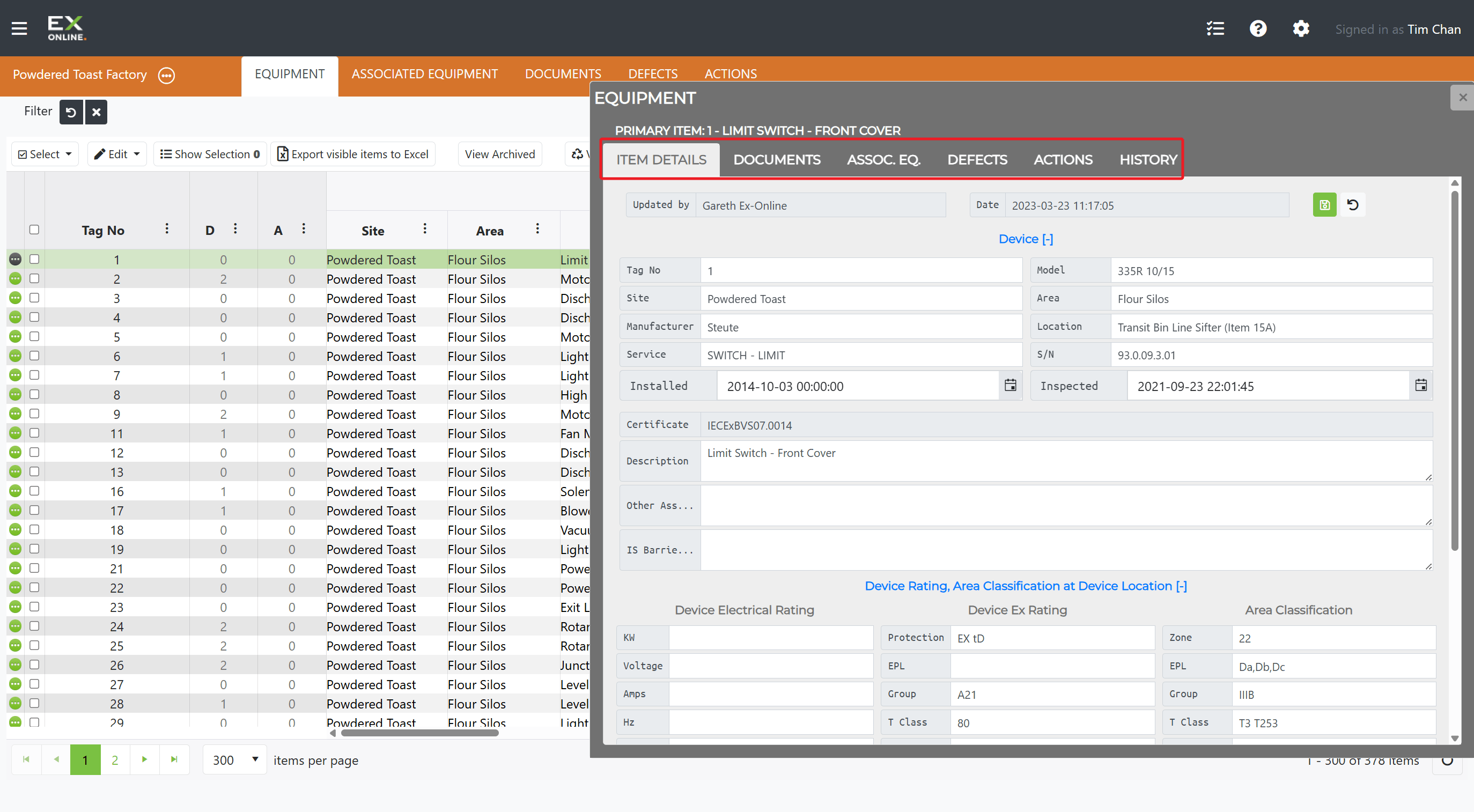
The Primary Item (the item whose expand icon was used to open the window) is displayed at the top of the Equipment Window. The Primary Item determines the scope of most operations — see Primary Item and Group Edit Mode below.
Equipment Window Tabs
Section titled “Equipment Window Tabs”| Tab | Description |
|---|---|
| Item Details | Equipment attributes and editable fields |
| Documents | Documents linked to the Primary Item |
| Assoc. Eq. | Associated equipment links |
| Defects | Defects for this equipment item |
| Actions | Actions for this equipment item |
| History | Change history for all fields |
Item Details Tab
Section titled “Item Details Tab”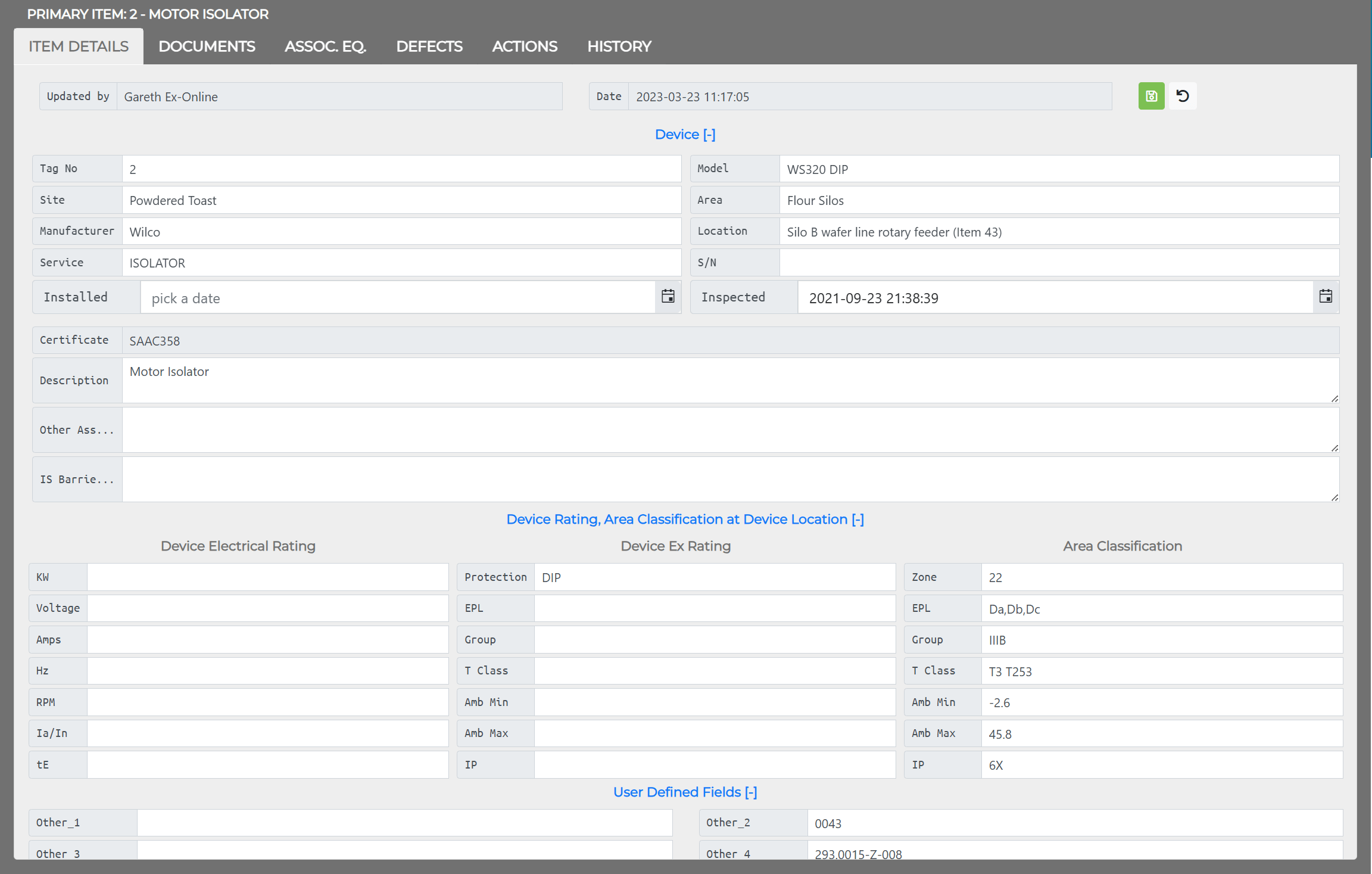
The Item Details tab displays all equipment fields, grouped into collapsible sections:
Device
Section titled “Device”| Field | Description |
|---|---|
| Tag No | Equipment tag number |
| Site | Installation site |
| Manufacturer | Manufacturer name |
| Service | Service type |
| Installed | Installation date |
| Model | Model number |
| Area | Specific area within the site |
| Location | Location detail |
| S/N | Serial number |
| Inspected | Date of last inspection |
| Certificate | Certificate of Conformity number (read-only) |
| Description | Free-text description |
| Other Ass. Equipment Details | Notes on associated equipment |
| IS Barrier/Isolator Model | Intrinsic Safety barrier details |
Device Rating, Area Classification at Device Location
Section titled “Device Rating, Area Classification at Device Location”| Section | Fields |
|---|---|
| Device Electrical Rating | KW, Voltage, Amps, Hz, RPM, Ia/In, tE |
| Device Ex Rating | Protection, EPL, Group, T Class, Amb Min, Amb Max, IP |
| Area Classification | Zone, EPL, Group, T Class, Amb Min, Amb Max, IP |
Additional Sections
Section titled “Additional Sections”- User Defined Fields — Other_1 through Other_6, Comment 1, Comment 2 (customizable)
- IS Parameters — Intrinsic Safety input/output parameters (collapsible)
The Update Details button saves pending changes. Discard reverts them.
Documents Tab
Section titled “Documents Tab”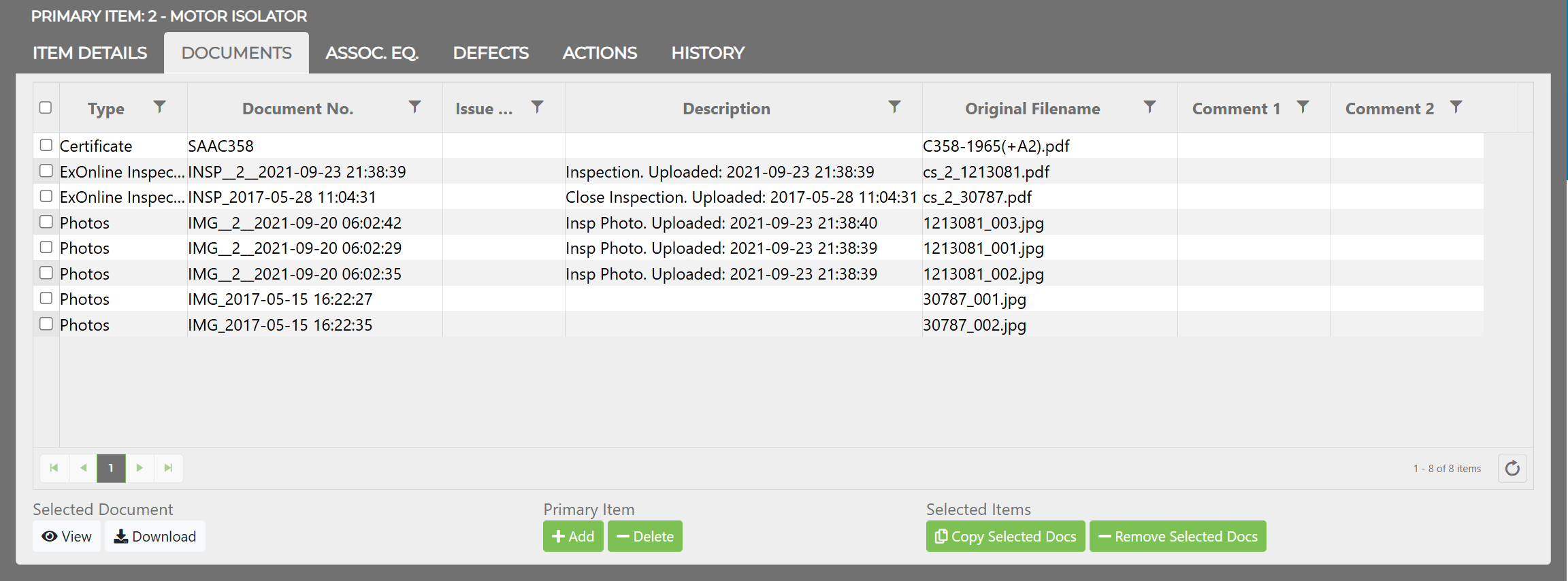
The Documents tab shows all documents linked to the Primary Item. Buttons in the Primary Item row only affect the Primary Item.
| Operation | Behavior |
|---|---|
| Add | Opens the Add Document window — adds to the Primary Item only |
| View/Download | Works on selected documents |
| Copy Selected Docs | Copies selected documents from the Primary Item to all selected items in the equipment grid |
| Remove Selected Docs | Removes selected documents from all selected items |
| Delete | Deletes the document from the project (affects all linked items) |
Associated Equipment Tab
Section titled “Associated Equipment Tab”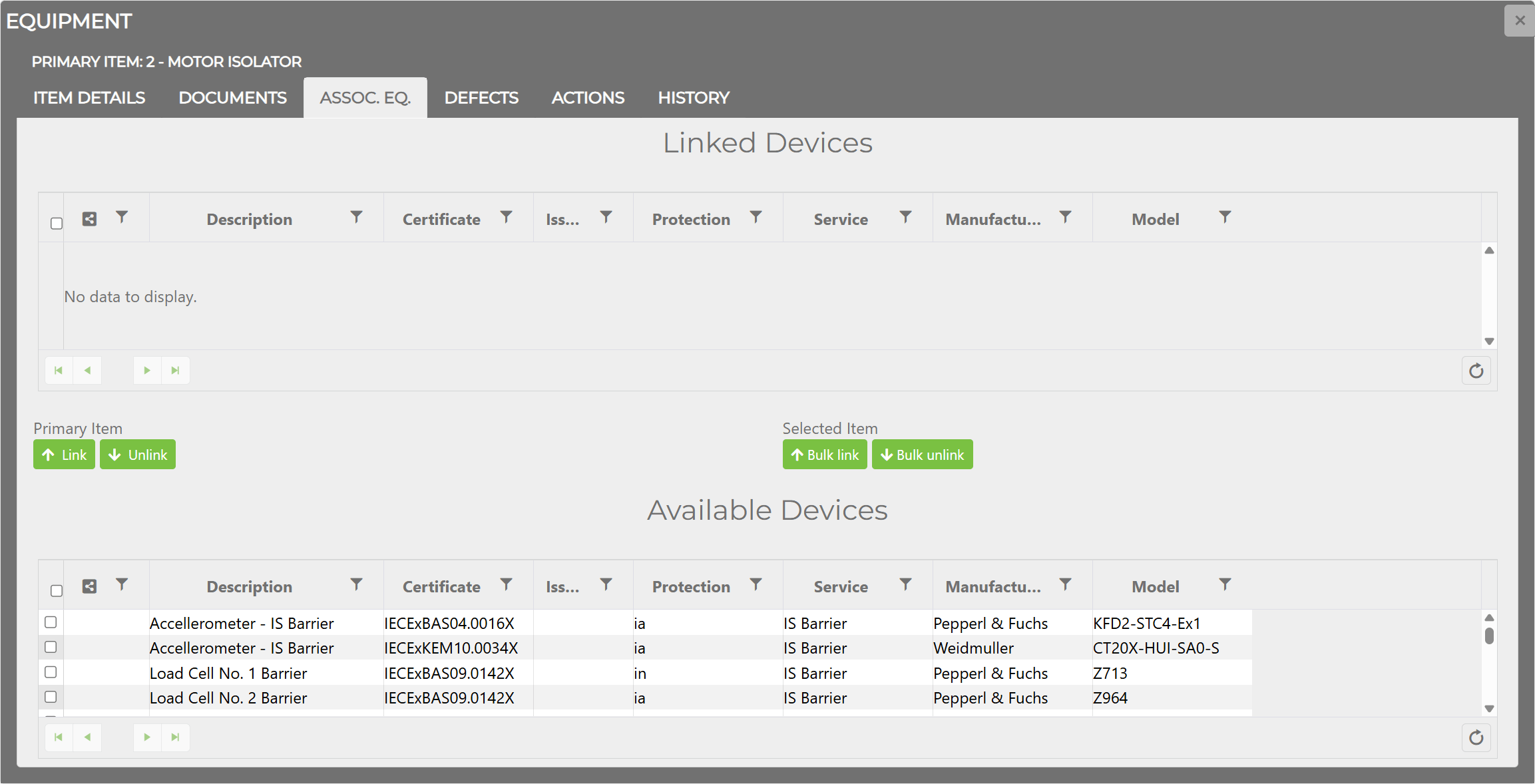
The Associated Equipment tab displays the link relationships between the Primary Item and associated equipment. The tab contains two grids:
- Linked Devices — associated equipment currently connected to the Primary Item.
- Available Devices — associated equipment in the project not yet connected.
| Button | Scope | Description |
|---|---|---|
| Link | Primary Item only | Moves selected devices from Available Devices to Linked Devices |
| Unlink | Primary Item only | Moves selected devices from Linked Devices back to Available Devices |
| Bulk link | All selected items | Links selected devices to every selected equipment item in the equipment grid (skips items already linked) |
| Bulk unlink | All selected items | Removes links from all selected equipment items |
For details on individual associated equipment items (attributes, documents, history), see Associated Equipment Window.
Defects Tab
Section titled “Defects Tab”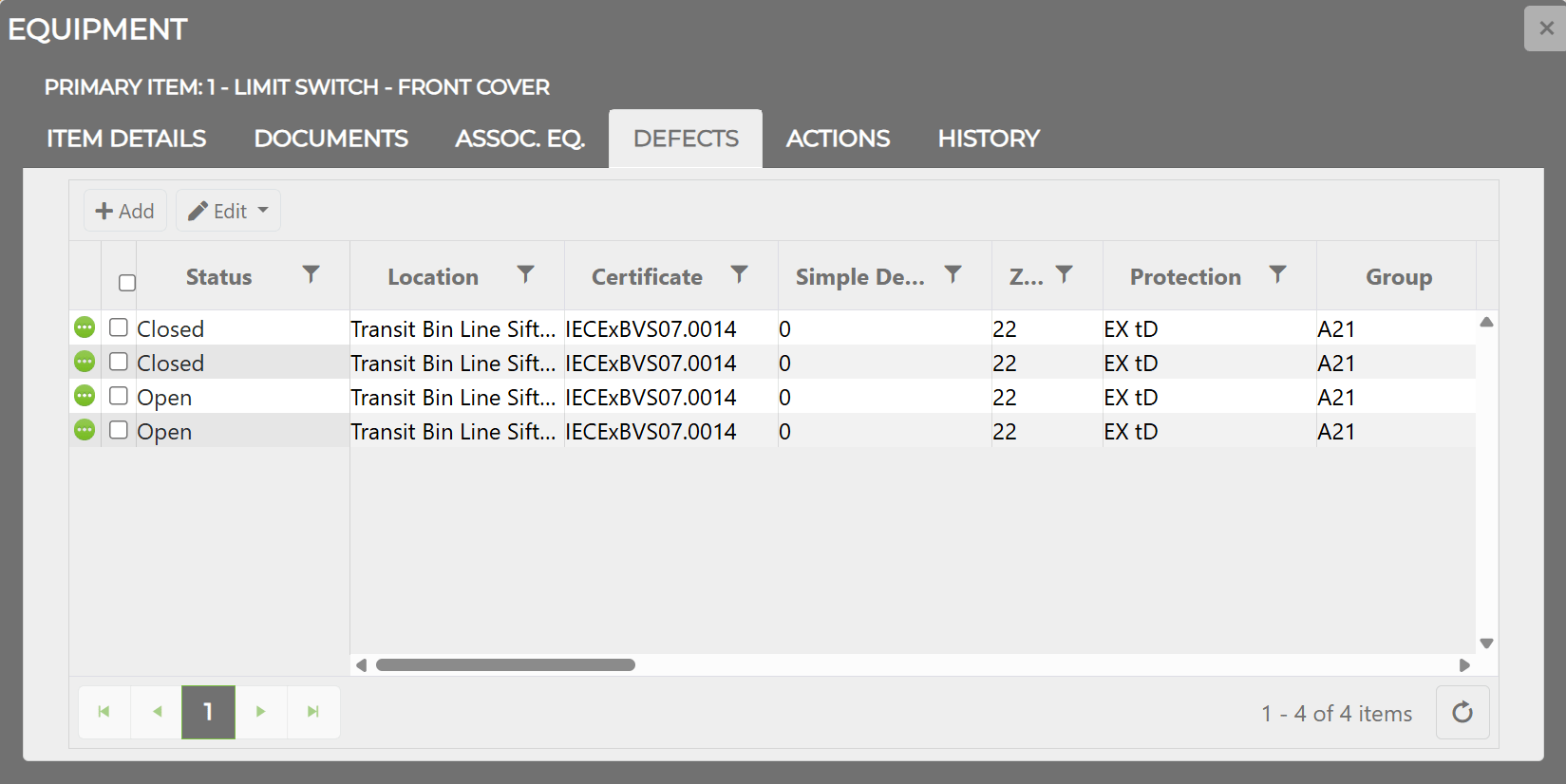
The Defects tab lists all defects linked to the Primary Item. Each defect row shows its status, location, certificate, and protection details. The + Add button creates a new defect; the Edit button opens the selected defect for modification.
Actions Tab
Section titled “Actions Tab”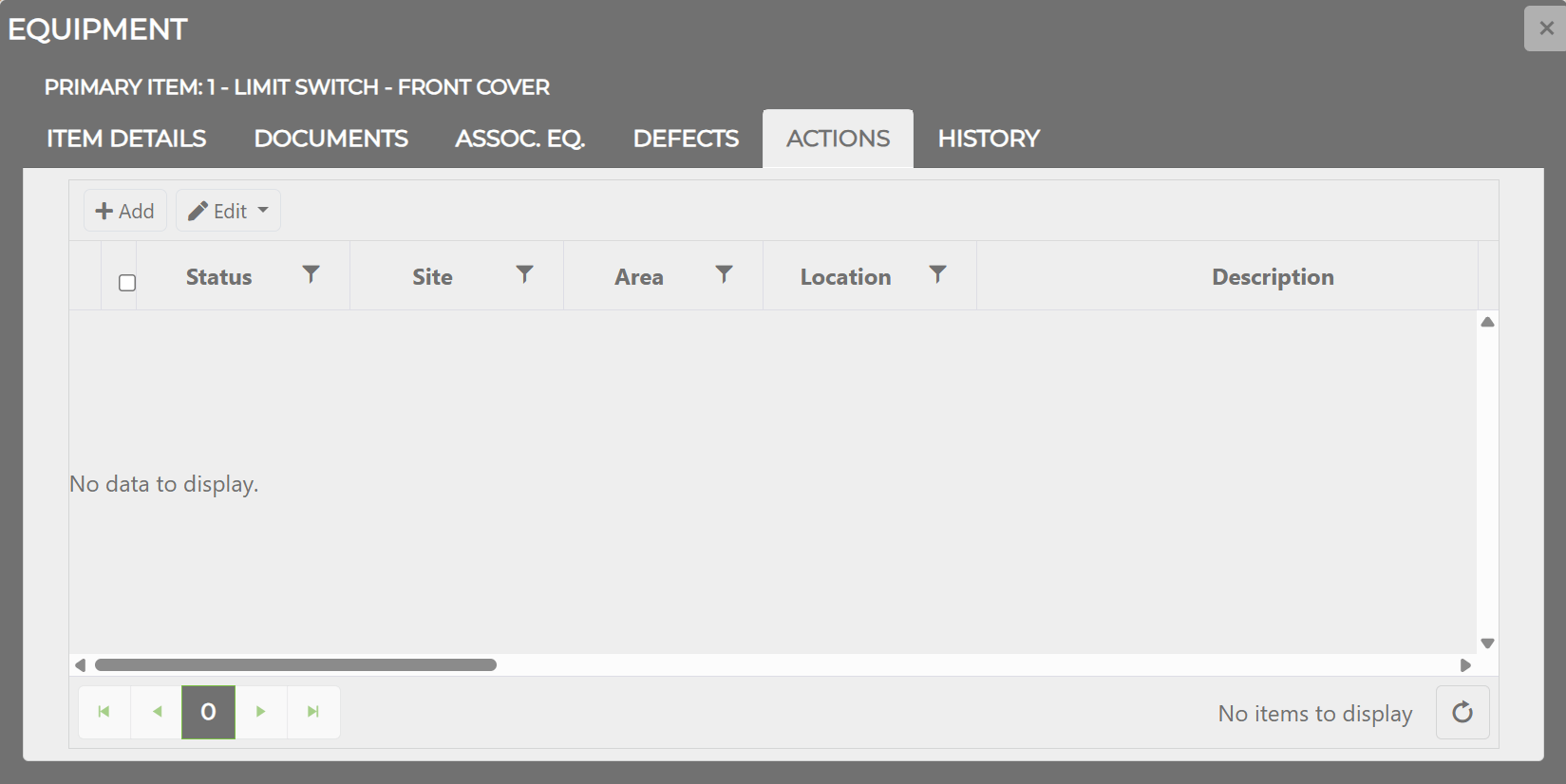
The Actions tab lists all actions linked to the Primary Item. The + Add button creates a new action; the Edit button opens the selected action for modification.
History Tab
Section titled “History Tab”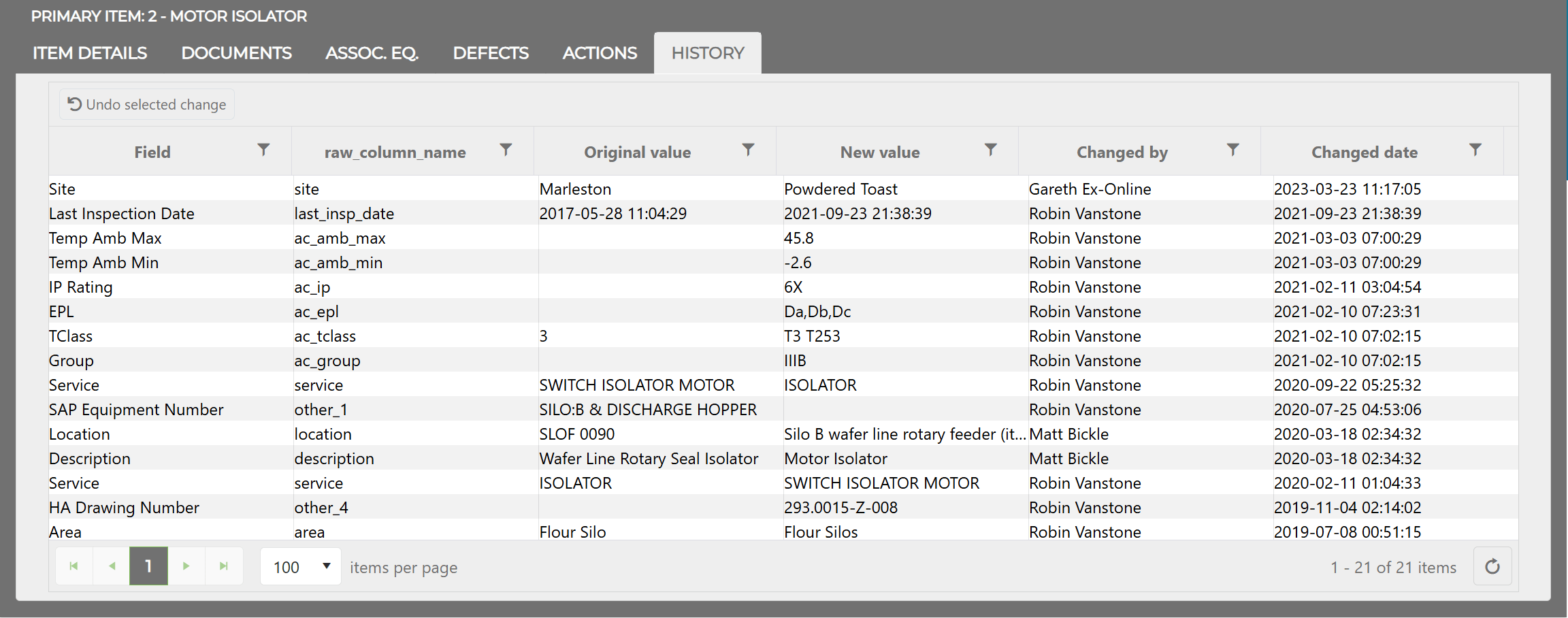
The History tab records all changes made to the equipment item:
| Column | Description |
|---|---|
| Field | Which field was changed |
| Original | The value before the change |
| New | The value after the change |
| User | Who made the change |
| Date/Time | When the change occurred (UTC) |
The Undo Selected Change button reverts a change to its original value and records a new history entry.
Primary Item and Group Edit Mode
Section titled “Primary Item and Group Edit Mode”The Primary Item is the equipment item whose expand icon was used to open the Equipment Window. It is listed at the top of the window (e.g. “PRIMARY ITEM: 1 - LIMIT SWITCH - FRONT COVER”). Tab-specific operations such as Add, Delete, and Link on the Documents and Assoc. Eq. tabs are always scoped to the Primary Item.
The Equipment Window always opens in Group Edit Mode. The Tag No field is greyed out and shows “Group Edit Mode” regardless of how many items are selected.
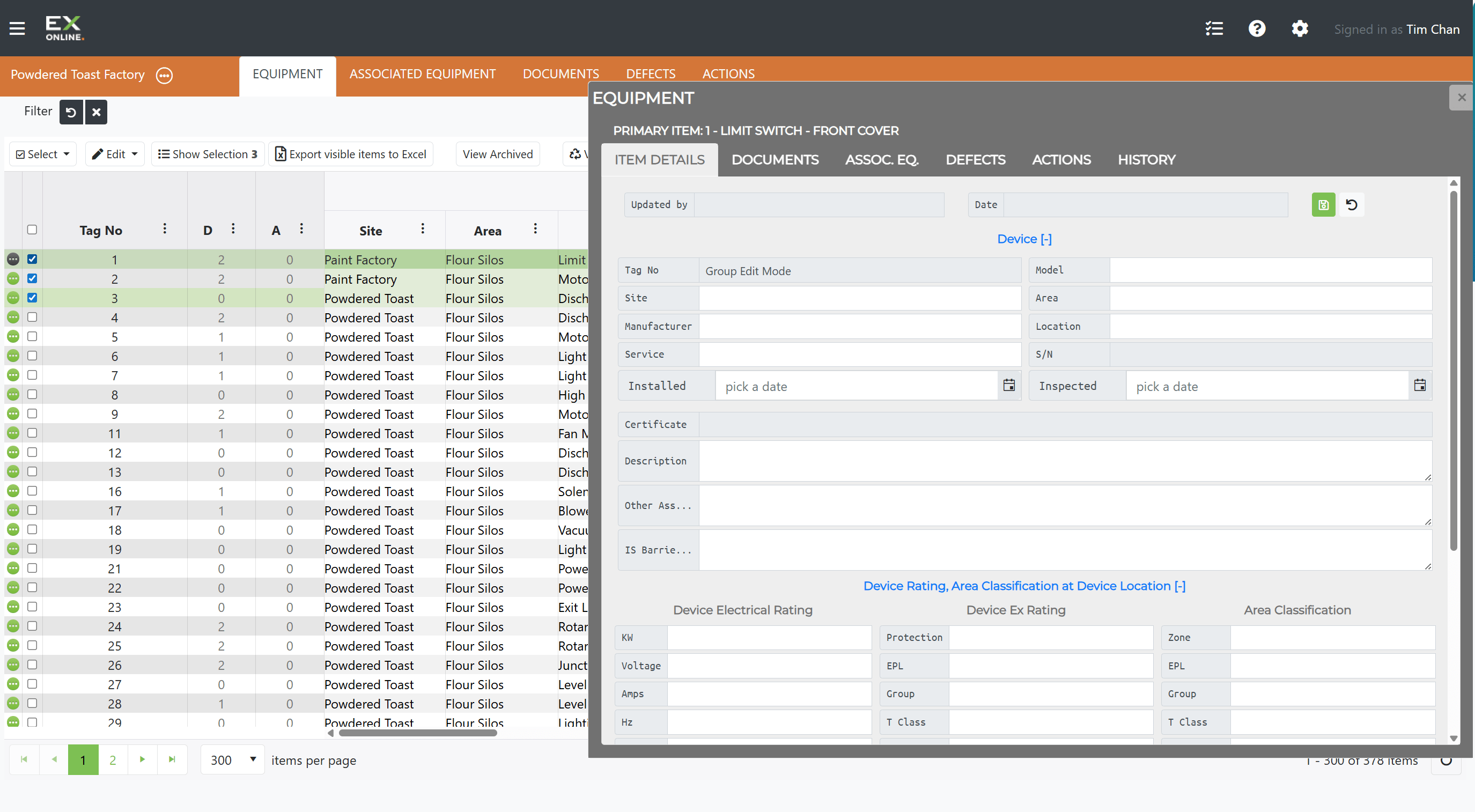
- When no items are selected, edits on the Item Details tab apply to the Primary Item only
- When one or more items are selected, edits apply to all selected items
- The Primary Item is only affected if it is part of the current selection
Related Topics
Section titled “Related Topics”- Equipment — Equipment grid, toolbar, and view settings
- Managing Equipment — Adding, editing, and deleting equipment
- Associated Equipment Window — Secondary device window with merge